
In addition to "Completing" (removes from note) and "Dismissing" tasks, Amplenote also makes it easy for users that prefer to complete their tasks in a way that leaves the tasks in the note.
On this page, we will review three four five six seven different options that allow a user to complete a task and have it remain inline in the note. 😅
link
Seven options to cross out completed tasks (leave them in note)
There are seven options to cross out a task. Here's a list of the options, with our recommended options first in the list:
link1. Use the Keyboard Shortcut for crossing out task
Shift-Ctrl-Space. It is the same as the normal hotkey for completing a task (Ctrl-Space) but it adds the Shift key to the mix. This option works on any of macOS, Linux, or Windows.
link2. Change the global account setting for Task Completion Mode
You can change the global default for how tasks are completed on desktop or mobile. On desktop, click your profile icon and choose "Account Settings," then the "Appearance" tab, where you can change the global default for task completion:
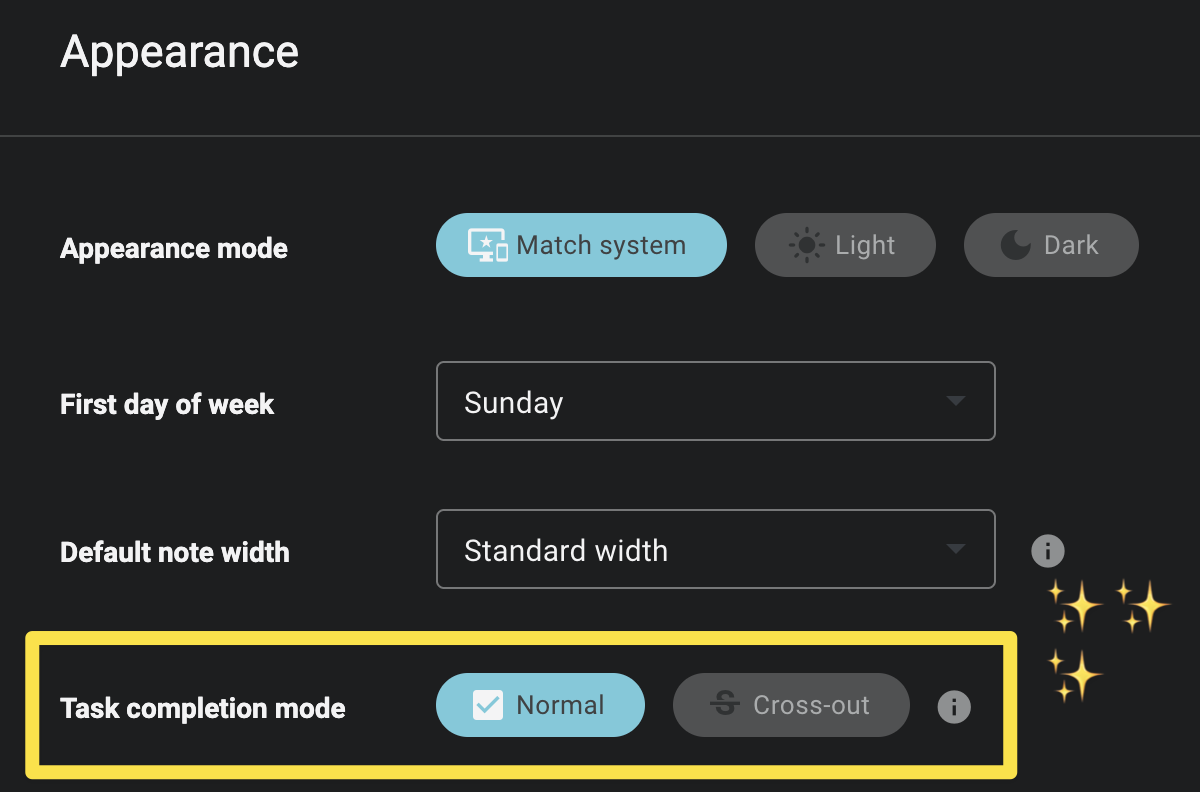
Changing global default task completion
On mobile, you can tap your profile icon in the upper left, then choose "Settings." Under "Appearance" there is a "Default Task Completion Mode" option that can be changed.
link3. Use the slash menu's /cross command
Whether on mobile or desktop, you can always use /cr to pull up the task action to complete a task inline.

link4. Hold shift while clicking the checkbox
Pretty self-explanatory: if you hold shift when you click on the checkbox to the left of a task, the task will be crossed out and will remain inline.
link5. Use the task command
!cross-out. All you will really need to press is !cr before "cross-out" will be the default selected option, where you can press enter.
link6. Using the Cross out task button within the task details
You can read more about opening Task Details here. This is usually a slower option than the ones above, but it is available in all of the note modes (as are the other three).
link7. Swipe tasks to cross-out (Mobile)
To display the options to either cross-out or dismiss a task, swipe to the left.
Crossing out a task has the effect of creating a strikethrough bullet item in its place. So, from this:
💪 Work out
to this:
💪 Work out
⚠️ Note that any task properties will be lost by performing this operation. Converting the crossed out task into a normal task will not recover those properties.
With respect to recurring tasks, crossing out works just like completing or dismissing tasks - that is when crossing out a recurring task, a new task will be created for the next occurrence.
linkConfigure a note to cross out tasks by default on completion

By default, all tasks completed in this note will be crossed-out, left inline
You can access this feature in the note menu by navigating through "Triple-dot" -> "More Options..." -> "Manage Tasks." You can turn this feature on to have finished tasks crossed out automatically upon completion. You must adjust this setting independently for each note.