Having trouble getting your repositories imported? Whether the issue lies in having your repositories import after selecting them, or not seeing the repos on the import page at all, we're here to help. This page discusses the most common sources of trouble when getting your repos imported into our service, and how to remedy them.
linkGitHub: OAuth token authorization (for Oauth-restricted Organizations)
Newly created GitHub organizations are default opted-in to permission-based access to Oauth Apps. For GitClear to be able to show you which repos can be imported from organizations that have, the first user to log in from your organization will need to explicitly approve access to the organization.
There are two main options to allow access:
linkOption 1: Grant explicit access during login
The easiest option, if you are an admin or owner of the organization to be imported, is to grant access to it during login. When you first log in, you will see a page similar to this:
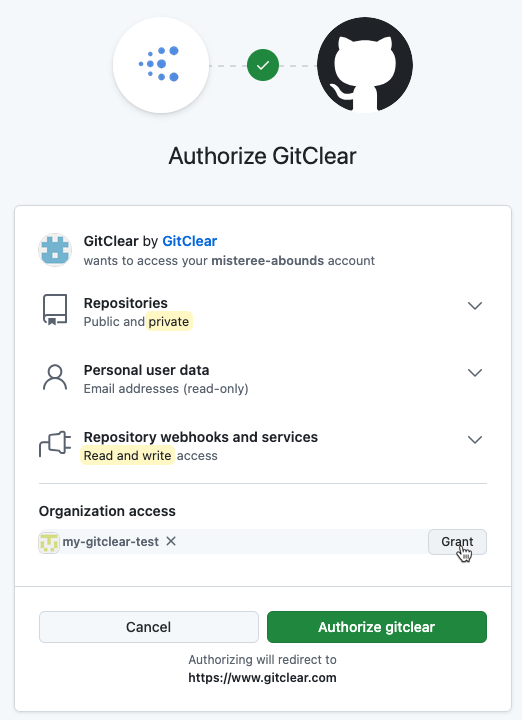
Be sure to click "Grant" next to any organizations whose repos will be imported
If you forget to click "Grant" next to each organization, then its repos will not be listed when you browse possible repos to import. Note that we will not process any content from this organization until you explicitly choose one or more of its repos to import.
linkOption 2: Grant access from the organization (post hoc)
If you do not click the "Grant" button upon logging in, and then try to import a repo from that organization on GitClear, your repo import will fail. To remediate the error, you need to visit your personal account on GitHub and designate "GitClear" as an app that should get access to the desired organization. This GitHub help page has instructions for how to accomplish this.
Here is the tl;dr:
Click "Settings" then "Applications" (under the "Integrations" heading in left) after clicking the ⚙️ icon at the upper right of any page.
From the "Applications" settings page, click the tab for "Authorized Oauth Apps"
Then click "GitClear" and click the "Grant" (or "Request Access") button next to the organization(s) you would like to be able to import from:
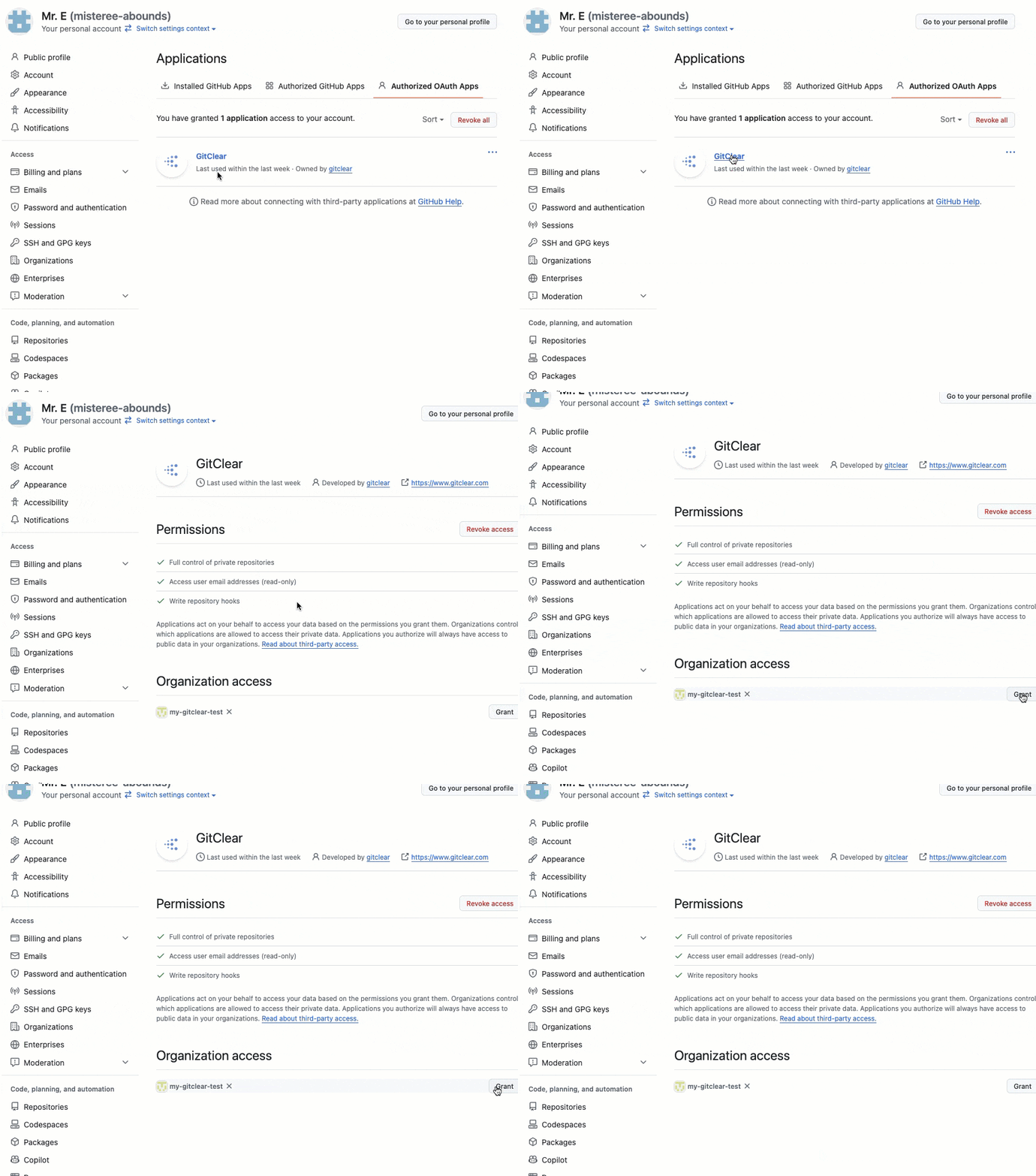
Granting access (or requesting access) to an organization with Oauth restrictions
After access has been granted, you may need to re-queue the import, since GitClear may have recorded that your account did not have access to the repo in question. Email support@gitclear.com if your import issue persists, we will respond within one business day for import problems.
linkGitHub: SAML SSO
GitHub organizations can utilize SAML single sign-on (SSO). In such cases, accounts must be properly linked to use and import repositories. See GitHub's steps for remedying this.
linkEnabling read access to import repos
Make sure that the source provider account you are using to log into GitClear is authorized to read the repo in question. If you are not an admin for repo(s) you want to import, you may need to ask an admin to check for you.
In GitHub, this is under your repo Settings -> Collaborators and Teams.
In GitLab, this is under your repo Settings -> General (check the visibility settings) and Project information -> Members (you may be listed under a group)
In Bitbucket, this will be in your repository menu (expanded from the sidebar), then User and group access
In Azure, this is under Project Settings -> Permissions
linkBitbucket: IP whitelisting
For providers like Bitbucket, you may optionally lock out API access to your repos. This is controlled by Bitbucket's allowlisting functionality. If you need to enable access for GitClear's IPs specifically, you'll want to whitelist the following set of IPs:
216.168.50.71
216.168.50.72
216.168.50.81
216.168.50.82
216.168.50.83
104.21.94.200
172.67.139.186
You may need to restart your repo imports if they were previously stalled as a result of our servers being blocked from API access.