There is no feature that GitClear has iterated more times than its Diff Viewer. Since 2020, the Diff Viewer has been gradually improved every quarter, with additional functionality imbued more often than blogs are written or help pages updated. All of which is to say, if the screenshots in this help page don't match what you see when you open the Diff Viewer, it's less because this help page is out-of-date and more that the Diff Viewer is a point of pride for GitClear's developers.
This help page will review the various elements of the Diff Viewer that exist as of 2024.
linkPreamble: What's in a Commit?
Every dev team has its own conventions about when to make a git commit. GitClear's guiding philosophy is that it shouldn't matter whether commits are "work in progress," "squashed," or carefully crafted: at the end of the day, a "commit" represents a developer's incremental documentation of why the repo is evolving.
Since more documentation is better, GitClear advises teams to commit early, often, and with alacrity. With GitClear's tooling, a WIP commit adds no burden to the code reviewer, because commits are automatically grouped together and summarized as Commit Groups. Thus, there is no salient drawback to frequent commits.
The benefits of maintaining a frequent commit habit: better documentation of why code is changing (to the extent commit author practices good commit hygiene), better visibility by manager's into what is being worked on (less need for check-in meetings), and the satisfaction of seeing visible progress in the form of a crowded Commit Activity Browser. 😊
linkAccessing Diff Viewer
Upon login, users are by default redirected to the Commit Activity Browser, where clicking on a recent commit will open the Diff Viewer.
If logged into GitClear, you can access the Diff Viewer for any git sha by visiting gitclear.com/c/[sha]. This is handy if you grab a sha from your git history and you want to quickly see a concise representation of that change on GitClear. A related shortcut also works if you paste in the ID of a PR in progress gitclear.com/p/[PR external ID] will redirect you to a PR with the given external identifier.
linkDiff Viewer Sections
In descending order from the top of the page, here are some features you'll find in the Diff Viewer.
linkIssue Tracker Ticket
If the work is on behalf of an issue tracker ticket (as most work on enterprise teams should be), the commit or commit group will lead with the issue tracker ticket that is being addressed by the work:

Details on the Jira ticket being implemented available after connecting Jira to GitClear
The issue tracker ticket can be automatically detected so long as the Jira's identifier is mentioned in a branch name, commit message, or pull request title/description.
linkCommit Group Summary
Most diff viewing on GitClear takes the form of viewing grouped commits. For these cases, the next section of the Diff Viewer is a summary of what commits are being viewed:
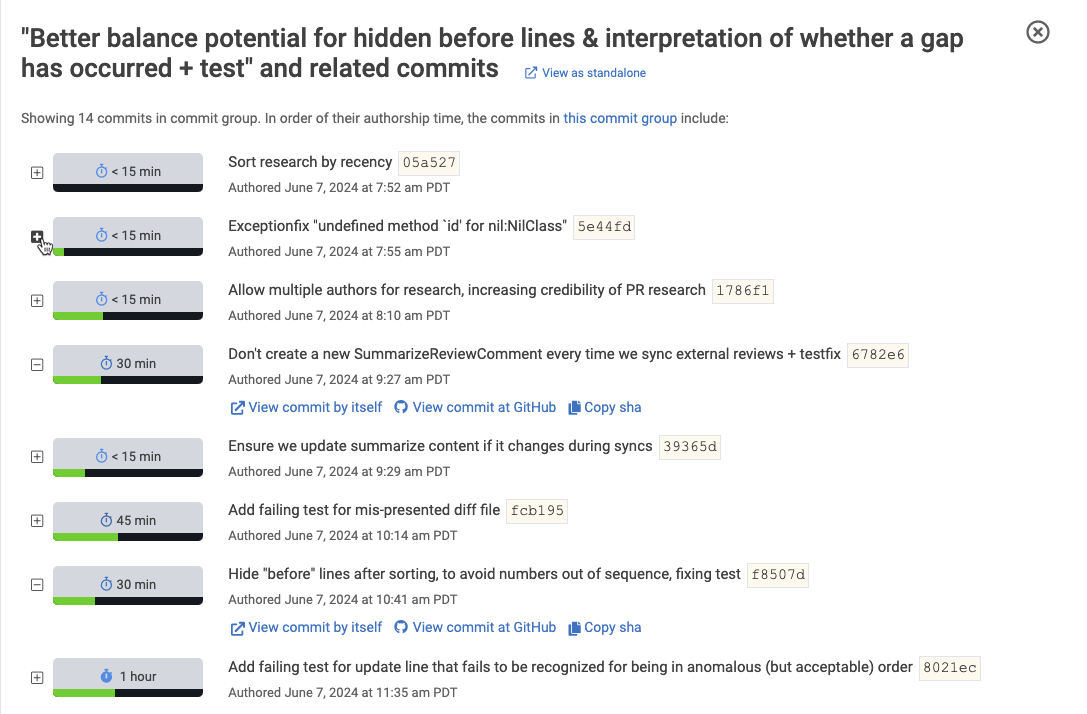
The green bar suggests how much change was packed into each commit
You can view a commit individually by expanding it. If you're curious how the time estimates are calculated, see How GitClear estimates time used (minutes, hour, days) per commit.
linkAuthor & Navigation
After the list of commits, you can see the committer, and navigate to work that came before or after the diff being viewed:

You can also modify the time estimate, work classification, or Diff Delta by clicking the text for any of these fields.
linkCode Categories
What type of code was changed in this diff?
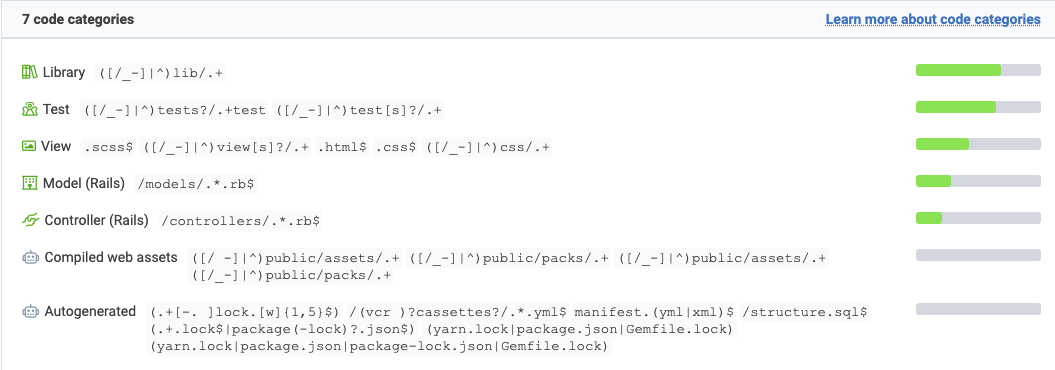
The color of each code category suggests the predominant type of change: green for "added," red for "deleted," blue for "updated."
linkExpand All & Settings
Next is the line that summarizes how many files changed, with a link to update Diff Viewer settings.

If you open settings, you'll get a few options to season your diff viewing experience to taste.
linkChanged File Summary
And finally, we're on to the diff itself! On the left side of the Diff Viewer is a list of files & directories to contextualize what changed, and where you are within the review.
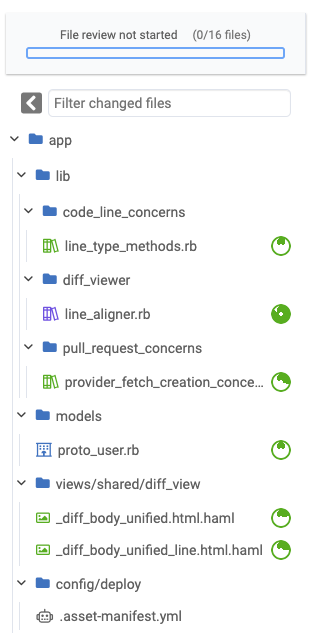
As you review files in the diff, the "file review progress bar" will light up to encourage progress. You can click on any file within the summary to jump straight to the changes for that file. The amount of filled circle for each file indicates how much the file changed in this diff.
linkChanged File List
To the right of the changed file list are the changed files themselves. If viewed from the Commit Activity Browser, files are collapsed by default and summarized with AI:
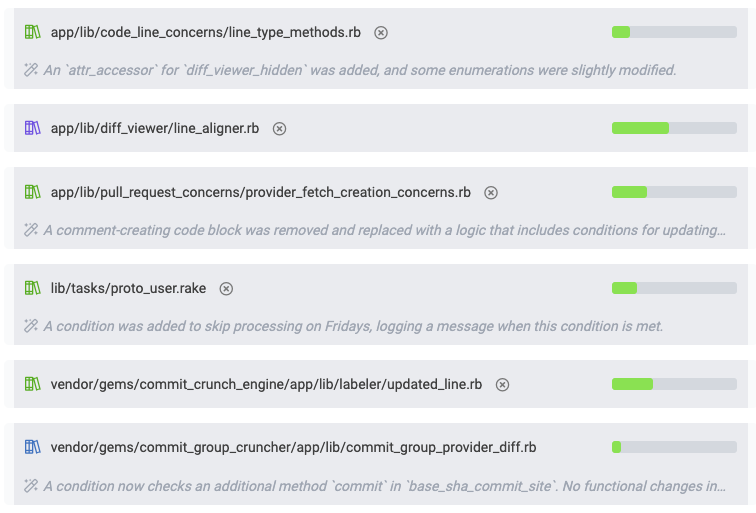
Clicking on a file will open it to show the changes contained therein. Clicking the "x" will allow you to configure ignoring files like the one clicked (you can pick whether to ignore the specific file, or its directory). The green bar on the right indicates how much Diff Delta (change energy) was accrued in each file. The color of the icon at the left edge hints at the main type of change that happened: green=add, red=delete, blue=update, purple=find/replace, gray=no-op.
When a file is opened, you're on to the diff itself.
linkReviewing a File Diff
The default Diff Viewer settings on GitClear will dynamically pick whether to show diff files in "Unified" or "Split" view. If there were numerous additions and deletions within a file, Split view is used, otherwise, Unified view is employed to show the changes:
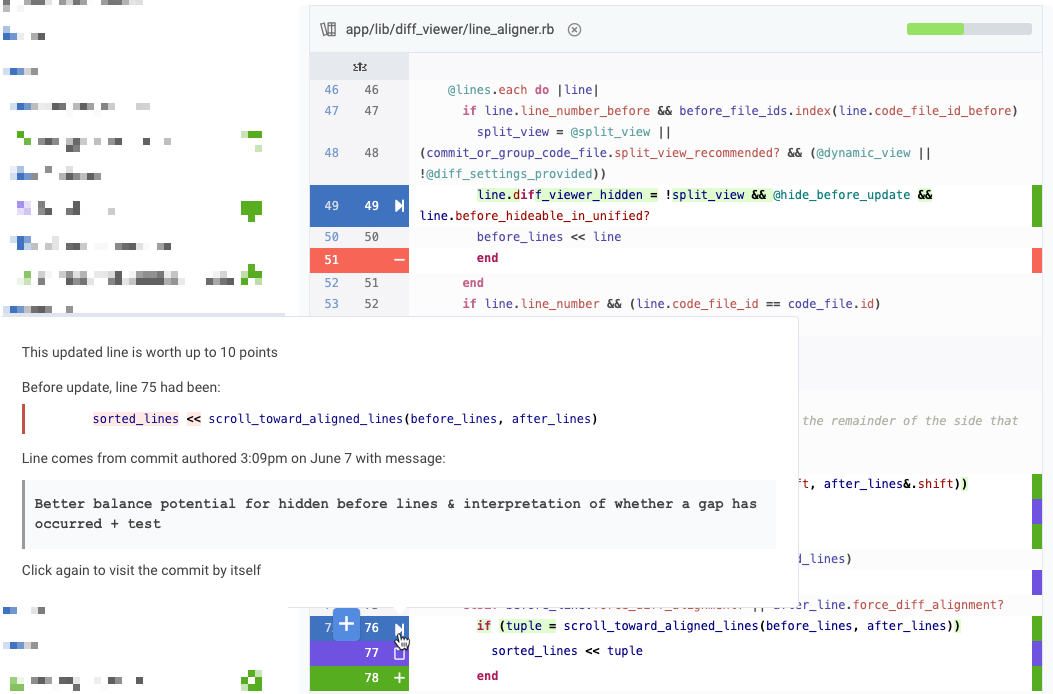
By default, in Unified view, the "before" side of changes is visible upon hovering the operation icon. Hovering on the operation icon also reveals other details about the change:
How much Diff Delta did the change register?
Was there a "before" side of this line that is auto-hidden?
What was the commit message in which the last meaningful change to this line occurred?
Link to view commit as standalone
If you click the "+" icon, you'll be taken to GitClear's code comment editor.
linkCode Comment Editor
If you click on the "+" icon, you can leave a comment.
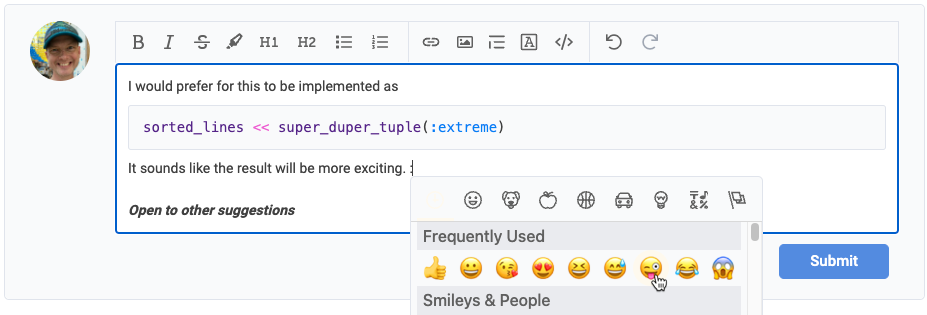
It has all the standard formatting options like bold, italic, highlight, and headings. It also allows selecting Slack-style emojis, and a triple-backtick will open a code editor that will format the code according to the type of file the comment is left within. It will remember indentation levels, if you want to suggest a method or if statement.