This page describes how to connect AI metrics to GitClear via AI APIs, LLM proxy, or telemetry. |
In order to enable optimal AI ROI evaluation, GitClear integrates with all the major code AI providers. This page describes how - and what - data can be retrieved to measure the exact impact of the team's AI usage. You can jump straight to your AI provider if you want to get started connecting to GitClear:
Each AI Provider has somewhat different data that is provided via their API. And, like all LLM-adjacent code, these evolve fast. If a provider doesn't return the data you wish today, there's a fair chance they will next quarter. That said, as of Q2 2026, here is the data available from each AI Provider:
Data point | Augment | Claude API¹ | Cursor² | Gemini | Github Copilot | Claude Telemetry | Codex Telemetry | Proxy/Request Log |
Input tokens | ❌ | ✅ | ✅ | ❌ | ❌ | ✅ | ✅ | ✅ |
Output tokens | ❌ | ✅ | ✅ | ❌ | ❌ | ✅ | ✅ | ✅ |
Cost | ✅ | ✅ | ✅ | ❌ | ❌ | ❌ | ✅ | ✅ |
Lines added count | ❌³ | ✅ | ✅ | ✅ | ✅ | ✅ | ✅ | ✅ |
Lines added precise | ❌ | ❌ | 🟡⁴ | ❌ | ❌ | ✅⁶ | ✅⁶ | ✅ |
Lines deleted count | ❌³ | ✅ | ✅ | ❌ | ✅ | ✅ | ✅ | ✅ |
Lines deleted precise | ❌ | ❌ | 🟡⁴ | ❌ | ❌ | ✅⁶ | ✅⁶ | ✅ |
Generic "lines changed" | ✅³ | ❌ | ✅ | ✅ | ✅ | ✅ | ✅ | ✅ |
Agent turns / request count | ✅ | ❌ | ✅ | ❌ | ❌ | ✅ | ✅ | ✅ |
Tab suggestion count | ✅ | ❌ | ✅ | ✅ | ✅ | ❌ | ❌ | ❌ |
Tab suggestions accepted | ✅ | ❌ | ✅ | ✅ | ✅ | ❌ | ❌ | ❌ |
Prompt size data | ❌ | ❌ | ❌ | ❌ | ❌ | ✅⁷ | ✅⁷ | ✅ |
Platform endpoint (platform.claude.com). The Teams/Enterprise variant drops tokens & cost but keeps lines added/deleted counts.
Cursor exposes two endpoints — daily usage (lines, tabs, agent requests) and filtered-usage-events (tokens, cost). Both merged here.
Augment lumps additions/deletions into a single lines_unlabeled_count rather than splitting them.
Cursor returns per-file metadata[].linesAdded/linesDeleted with extensions and an Enterprise plan.
Gemini & Copilot break down by language/feature but not per-line.
Telemetry hooks emit per-line MD5 fingerprints in line_changes (llm_added/llm_removed).
user_prompt_chars_delta, user_prompt_count, user_prompt_total_chars.
Platforms that provide less data to GitClear force a greater magnitude of extrapolation when reconciling the AI Provider-supplied data with the observed commits made by the team. For telemetry-based or proxy/request-log-based setups, GitClear can map from exact changed lines to the LLM that changed them, with confidence above 95% — this is why, as of Q3 2026, we lead with those two approaches ahead of a vendor's usage API wherever a team can support them (see LLM Proxy & Request Log below). For less robust AI APIs, like Gemini Code Assist and Augment Code, we can still confidently evaluate the total AI adoption rate for the team, and how AI is correlating with various outcomes, like "more tickets closed." However, these low-information APIs reduce the ability to derive a longer-term derivation like "how much more often did the AI write code that went on to create a critical defect?"
linkLLM Proxy & Request Log
For any enterprise that already routes AI coding traffic through an internal LLM proxy (Portkey, Kong, LiteLLM, a custom gateway, etc.) — or that simply retains a centralized request/response log for its coding assistants — this is now our top recommendation for AI usage measurement, ahead of connecting to any individual vendor's usage API.
GitClear has vast experience processing these logs securely: data stays entirely within the customer's own firewall throughout, while GitClear's processing associates each authored line of code with the specific LLM that produced it, then follows that line's lineage through subsequent edits to assess how durable the AI-authored code turned out to be.
This is the same line-fingerprinting approach used by the Claude/Codex Telemetry scripts described under Claude Code Analytics and Codex by OpenAI Analytics below, but a proxy or request log covers every provider your team uses — Claude, Codex, Cursor, Copilot, Gemini, Augment — from a single integration point, rather than requiring a separate telemetry agent per tool.
If your organization already has an LLM proxy or a coding-assistant request log in place, email hello@gitclear.com and we'll work with you to connect it to GitClear.
linkAI Provider Setup form
All AI Usage APIs, besides the "Claude & Codex telemetry"-based ones and the LLM Proxy/Request Log integration, are set up by visiting the rightmost "Settings" tab when logged in. The default Settings tab is "AI Providers Setup."
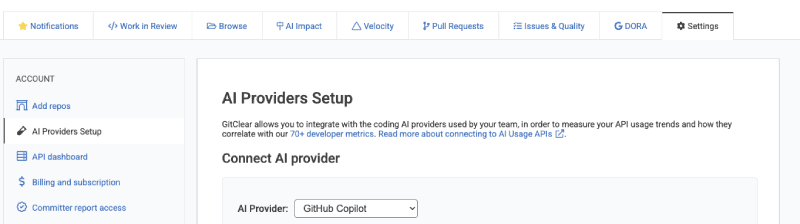
Note that, when you are on a non-settings page, the "Settings" tab will initially look like just a "gear" icon until you hover over it, when it expands to the full "Settings" tab with text label.
On the AI Provider Setup form, you'll pick the AI Provider that you want to connect GitClear with. After choosing your AI Provider, the form will update to include a link where you can retrieve your AI access key. Visit this URL, follow the applicable instructions, then paste your resulting AI API key into the form.
linkCursor API or Telemetry Stats
Cursor offers an excellent breadth of stats. Note that the "🟡" for "precise lines" reflects that Cursor offers an API to retrieve this, but it is limited to Enterprise customers.
Input tokens | Output tokens | Cost | Lines added count | Lines added precise | Lines deleted count | Lines deleted precise | Generic "lines changed" | Agent turns | Tab suggest count | Tab suggest accepted | Prompt size data | |
Cursor | ✅ | ✅ | ✅ | ✅ | 🟡⁴ | ✅ | 🟡⁴ | ✅ | ✅ | ✅ | ✅ | ❌ |
To retrieve stats from Cursor, follow Cursor's help documentation to generate an Admin API key:
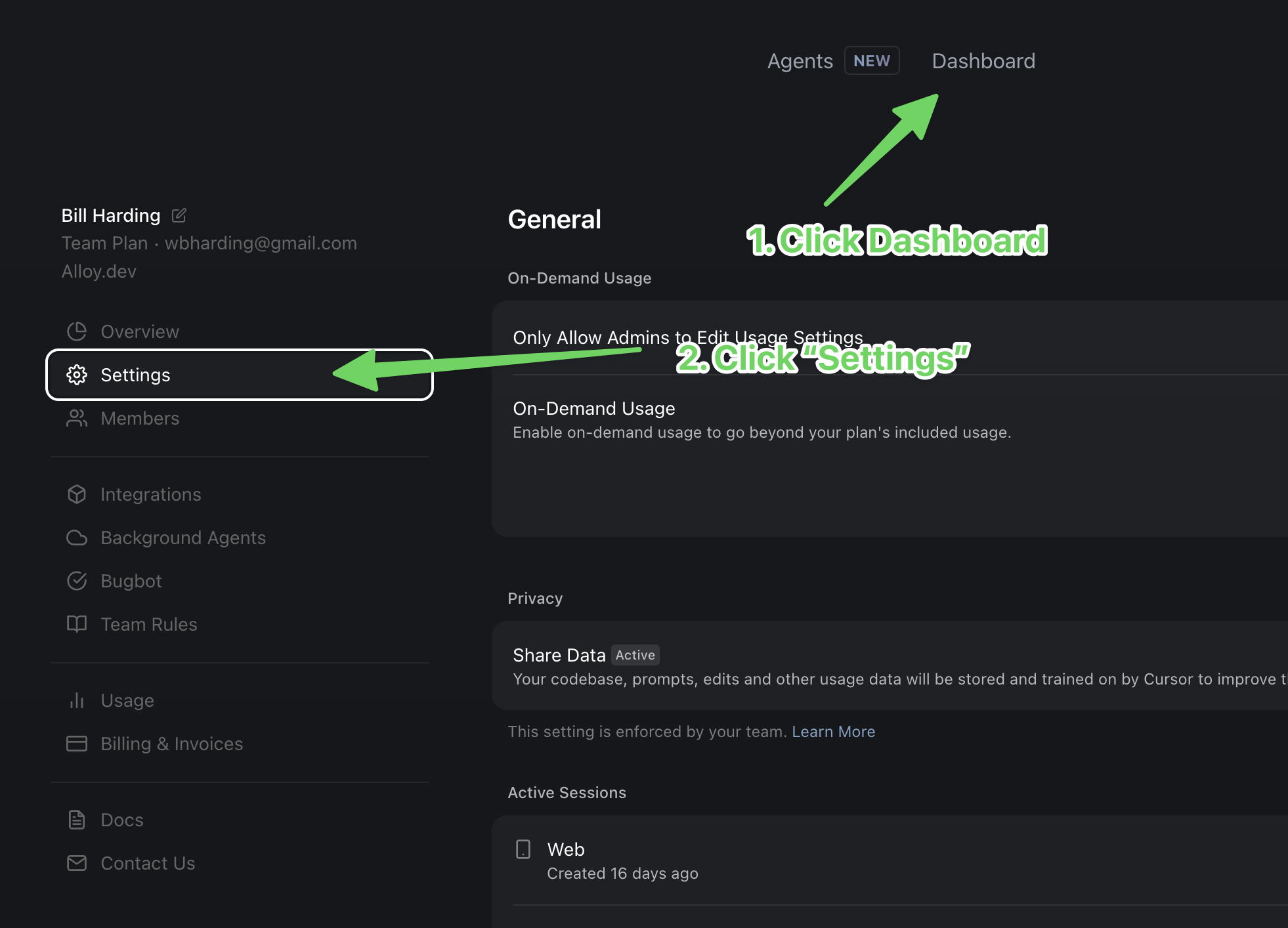
Navigate to cursor.com/dashboard → Settings tab → Advanced → Admin API Keys
Click Create New API Key
Give your key a descriptive name (e.g., "Usage Dashboard Integration")
Copy the generated key immediately - you won't see it again
Format: key_xxxxxxxxxxxxxxxxxxxxxxxxxxxxxxxxxxxxxxxxxxxxxxxxxxxxxxxxxxxxxxxx
Start with "Dashboard" => "Settings":
Then scroll down the Settings page to "Advanced," where you can click the button for "New Admin API Key"
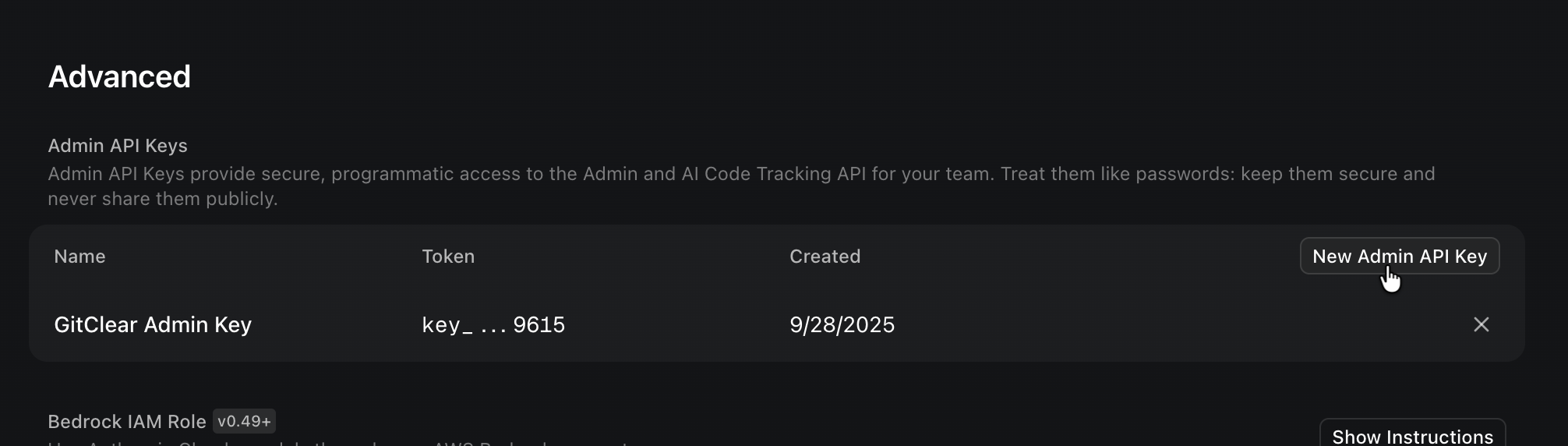
The key you copy can be pasted into GitClear's "Settings" => "AI Usage" tab.
linkCursor Telemetry Package
If you don't have a Claude Code Enterprise package but still want to be able to get per-line granularity for which LLMs modified which lines, use GitClear's AI Telemetry package in npm to deliver per-line and per-turn detail into the prompts issued and the responses that follow.
linkClaude Code Analytics
GitClear has a plethora of options available for our Claude Code customers. Since, as of Q2 2026, Anthropic has lagged Cursor in delivering a rich set of usable per-committer data via its usage APIs, our default recommendation for every Claude Code team — regardless of plan — is to install GitClear's Claude telemetry script. At a high level, there are three integration options available to Claude Code subscribers:
Our recommended option for all teams: the Claude Telemetry script by GitClear, which retrieves precise line change data (e.g., which model authored which line? Which were subsequently human-changed?) regardless of your Claude subscription, and can operate fully behind an enterprise firewall.
For teams that use Claude.ai with a Teams Enterprise plan, Anthropic provides access to a usage API, useful as a secondary, token/cost-level data source. If you have a Claude.ai Team plan without an Enterprise subscription, this usage API is unavailable — use the Telemetry Script (option #1) instead.
For teams that use Claude Console (platform.claude.com), the "metered use" API, you can generate an Admin API key to retrieve per-committer data as a secondary source.
Input tokens | Output tokens | Cost | Lines added count | Lines added precise | Lines deleted count | Lines deleted precise | Generic "lines changed" | Agent turns | Tab suggest count | Tab suggest accepted | Prompt size data | |
Claude Telemetry | ✅ | ✅ | ❌ | ✅ | ✅ | ✅ | ✅ | ✅ | ✅ | ❌ | ❌ | ✅ |
Claude API | ✅ | ✅ | ✅ | ✅ | ❌ | ✅ | ❌ | ❌ | ❌ | ❌ | ❌ | ❌ |
Our recommendation: install the Claude Telemetry script first — it delivers the most accurate AI ROI data regardless of your Claude plan, and can operate fully behind an enterprise firewall. Email hello@gitclear.com to get a link to download it at no cost.
If you also happen to have a Claude.ai Enterprise Team subscription, or platform.claude.com as your primary entry point, adding that API key to GitClear's AI Provider Setup form is a fine supplement for token/cost figures — but per the table above, it shouldn't be relied on as your primary source, since it can't attribute individual lines to Claude with the precision the Telemetry script offers.
linkOption #1: High Precision Code Line Telemetry
GitClear has built a proprietary Claude Telemetry implementation for any Claude Code team seeking detailed information about their Claude-authored code. Users of the telemetry solution will be able to directly assess the long-term outcomes for their code lines authored by Claude, with significantly higher confidence than is possible through a Usage-based API.
linkOption #2: Claude.ai with an Enterprise Team Plan
Claude.ai is where most users interact with Claude from. As of Q2 2026, Anthropic requires customers to purchase an Enterprise-level plan (minimum 20 seats, minimum one-year purchase) in order to receive an Analytics API key. If you have an Enterprise plan, click here to get instructions on retrieving your API key.
linkOption #3: Claude Console (platform.claude.com) Metered Plan
Claude Console (platform.claude.com) is where Admin API keys can be generated for any-sized team, if you elect to pay for your AI per-token. Check if you have stats visible on this page to confirm whether you are currently using Claude Console for code generation. Unlike Claude.ai Enterprise plans, Claude Console does not offer subscription plans - all billing is metered as pre-purchased credits.
linkGithub Copilot Analytics & Measurement
If you log in via GitHub, no special setup is necessary on GitClear. You only need to ensure that your Github organization/enterprise enables "Copilot Metrics," as described in the following section.
Input tokens | Output tokens | Cost | Lines added count | Lines added precise | Lines deleted count | Lines deleted precise | Generic "lines changed" | Agent turns | Tab suggest count | Tab suggest accepted | Prompt size data | |
Github Copilot | ❌ | ❌ | ❌ | ✅ | ❌ | ✅ | ❌ | ✅ | ❌ | ✅ | ✅ | ❌ |
If you log in via Bitbucket, Gitlab or Azure, you'll need to ensure Copilot Metrics are enabled, and either create a token, or log in to GitClear from your GitHub account.
linkEnsuring the enterprise account has Copilot Metrics "Enabled Everywhere"
To ensure "Copilot Usage Metrics" (the GitHub v2 AI API) is enabled,
Visit your GitHub enterprise settings: they should be of the form https://github.com/enterprises//settings
If you don't know your enterprise-slug, the list of enterprises you have Settings access to is available at https://github.com/settings/enterprises click the "Settings" button next to the enterprise to configure.
Click the "Policies" tab from the top row, then click "Copilot" from the left tabs, to arrive at your Enterprise "Copilot usage metrics" setting:
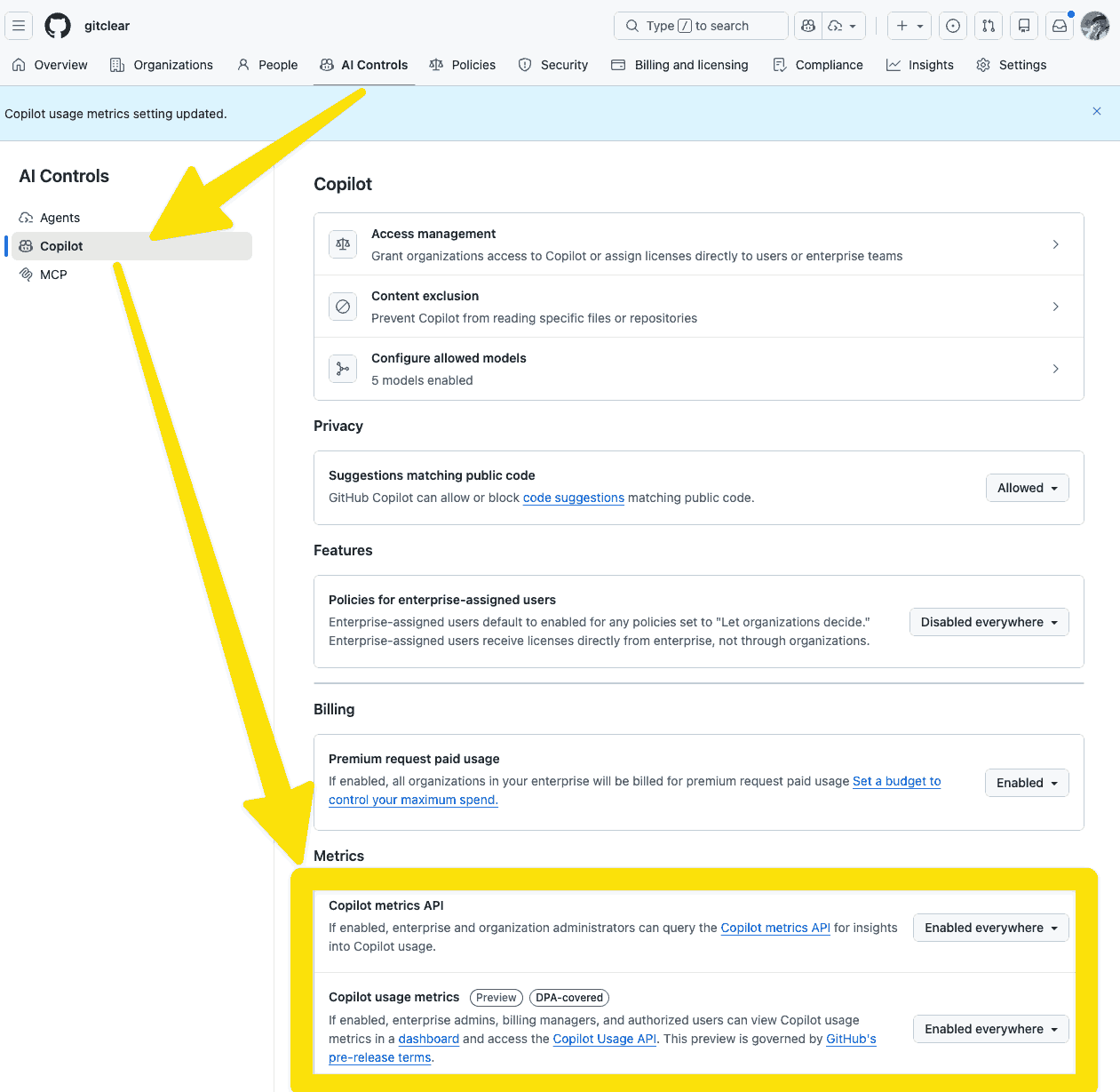
Confirm that Copilot Metrics API and Copilot Usage Metrics are enabled
In some subscriptions, GitHub may not enable "Enterprise" access and may configure the Copilot Metrics API through Organization settings instead. In this case, you can view the Organizations you are able to configure at https://github.com/settings/organizations. Click "Settings" next to the organization that has Copilot seats, and choose "Copilot" => "Policies" in the left sidebar.
linkEnsuring that Organization(s) allow Copilot Usage Metrics
If you have newly enabled Copilot in your Enterprise, it's a good time to confirm that you have organizations also allow Copilot and Copilot Metrics to be retrieved:
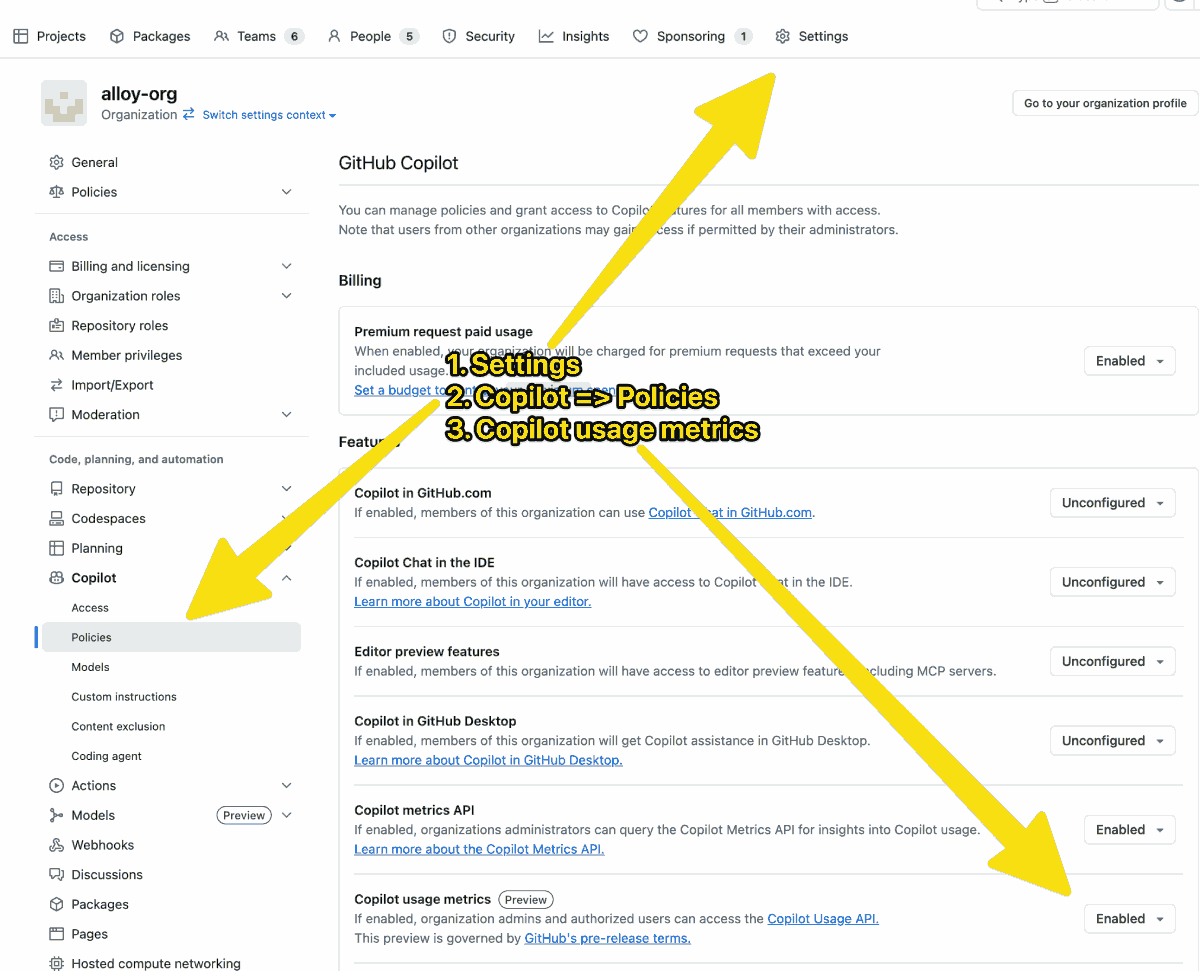
Individual GitHub organizations need to have Copilot Usage Metrics enabled
Upon activating Copilot for the Enterprise, there is usually at least one Organization automatically enabled, but if you have multiple Organizations in your Enterprise, you likely need to visit those Organizations individually to enable Copilot is enabled.
After the Organization has Copilot enabled, you must then click on Copilot => Policies and confirm that "Copilot usage metrics" is enabled for this Organization. The process is identical to enabling Copilot Metrics for the Enterprise settings.
linkGetting Copilot Metrics with Bitbucket, Gitlab or Azure repos
You have two options to get Copilot usage metrics: you can either
Log in to GitClear from your GitHub account and email support@gitclear.com with the email address for both your accounts to be connected
Create a GitHub Personal Access Token using the instructions below
The benefit of the latter is that it can be enabled immediately, but the drawback is that you either have to create a non-expiring token (which GitHub recommends against) or you have to undertake a new chore to go regenerate a token every X days.
On balance, we recommend logging in to GitHub and emailing us your two accounts to connect, but if you prefer to generate a token, read on.
linkGenerating a GitHub Personal Token to Access Copilot Metrics
A Github Personal Token (GitHub help page on the topic) can be used to generate AI Impact & Correlation Stats on GitClear.
First, on GitClear, visit your Entity's "Settings" => "AI Usage" tab.
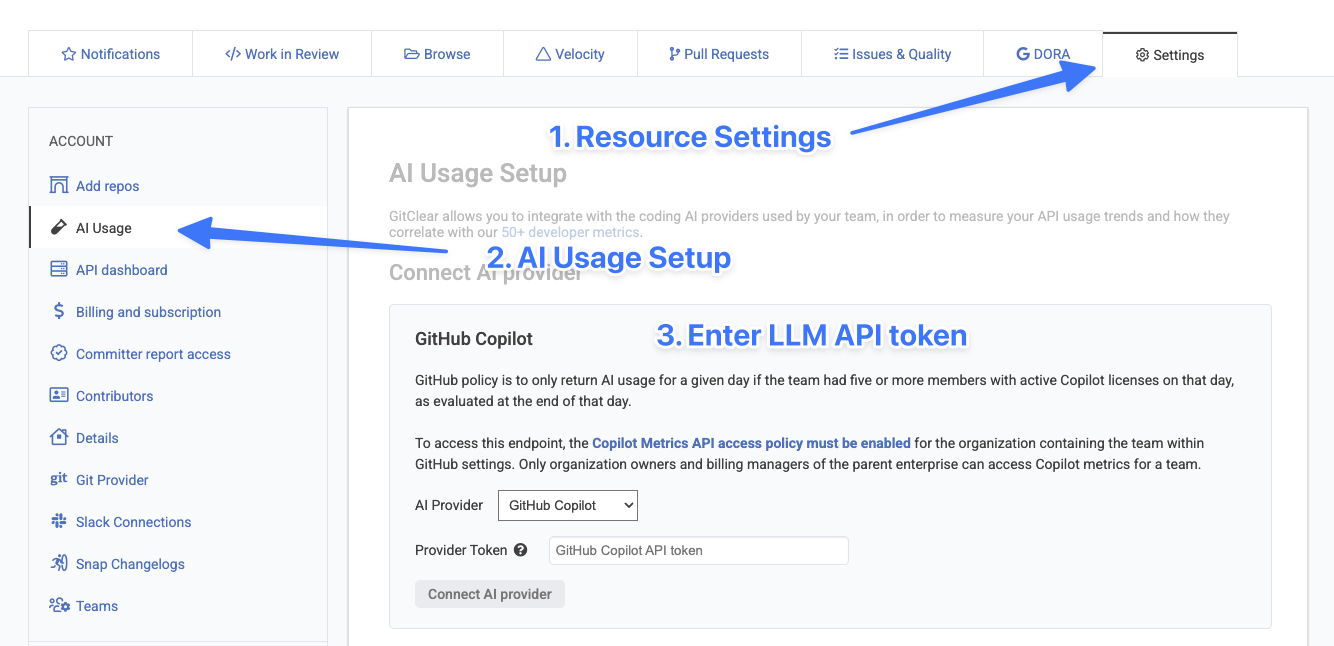
Then, on GitHub:
Click here to create a new "Classic" token (alternately, you can view your existing tokens)
Fill out the permissions for your token, ensuring it checks the box for "Copilot"

Shown using a non-expiring token that can be deleted later by visiting GitHub Token Settings
After creating "Generate token," you should get a key of the length and prefix
ghp_XXXFGyxOsZpbdGIa4WV9KwGFIW6WIF1RXXXX
linkAugment Code Analytics
If you have an Enterprise subscription to Augment, you can connect your team's AI usage to GitClear. We recommend following Augment's latest instructions for retrieving your Augment token: the Augment documentation is available here. Augment's breadth of data offered is middle-of-the-road:
Input tokens | Output tokens | Cost | Lines added count | Lines added precise | Lines deleted count | Lines deleted precise | Generic "lines changed" | Agent turns | Tab suggest count | Tab suggest accepted | Prompt size data | |
Augment | ❌ | ❌ | ✅ | ❌ | ❌ | ❌ | ❌ | ✅ | ✅ | ✅ | ✅ | ❌ |
As of Q2 2026, the Augment setup looks like this:
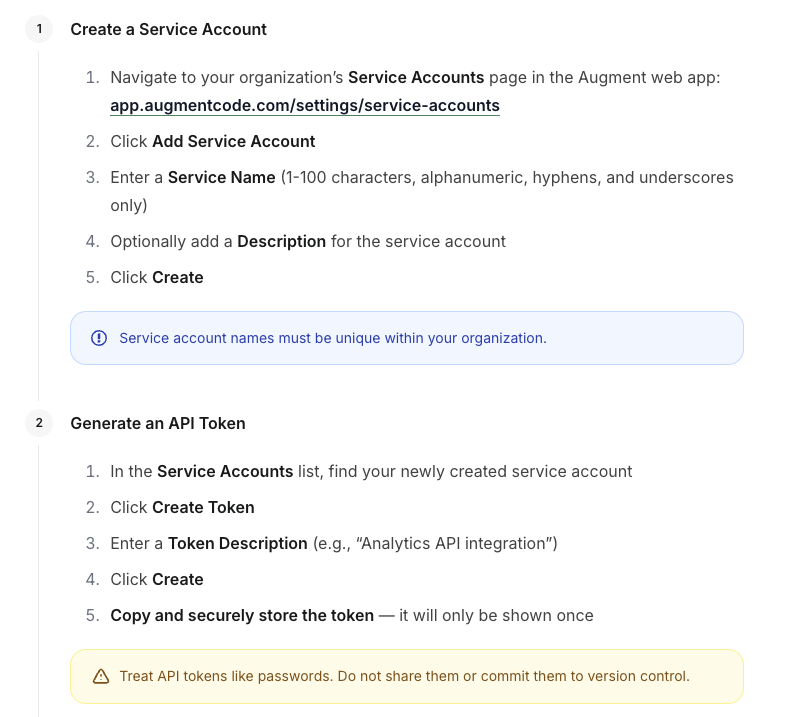
Set up a Service Account, Generate an API token
Customers with successful Augment tokens retrieve a 64-character hex string to paste into GitClear's AI Provider Setup form. Augment supports per-developer AI usage stats, including counts of lines that have been changed by each LLM per day.
linkCodex by OpenAI Analytics
Input tokens | Output tokens | Cost | Lines added count | Lines added precise | Lines deleted count | Lines deleted precise | Generic "lines changed" | Agent turns | Tab suggest count | Tab suggest accepted | Prompt size data | |
OpenAI Codex Telemetry | ✅ | ✅ | ❌ | ✅ | ✅⁶ | ✅ | ✅⁶ | ✅ | ✅ | ❌ | ❌ | ✅⁷ |
While OpenAI does offer a few Analytics APIs to their Enterprise customers, as of Q2 2026, none of these relate the count of "lines added" & "lines deleted" per committer. Since GitClear's AI ROI implementation relies upon mapping changed code lines to the specific LLM or human that changed them, this renders the Codex APIs not directly applicable for GitClear customers.
Instead of the limited OpenAI APIs, we have built a custom telemetry script that can be installed with Codex. Like it's Claude Code counterpart, the script works by deriving a one-way encrypted fingerprint of lines that are changed by OpenAI's LLMs. We pair the changed line fingerprints with metadata on which models are being used (and associated turn & token counts) in order to deliver sufficient granularity to ensure that decision makers can feel confident using the data to make decisions.
Our Codex Telemetry script is available through the GitClear AI Telemetry npm package.
linkGemini Code Assist
GitClear supports integrating with Gemini Code Assist, an offering by Google that delivers Gemini LLMs within various IDEs. Thus far, Gemini Code Assist integration has a lighter variety of columns than other provides:
Input tokens | Output tokens | Cost | Lines added count | Lines added precise | Lines deleted count | Lines deleted precise | Generic "lines changed" | Agent turns | Tab suggest count | Tab suggest accepted | Prompt size data | |
Gemini | ❌ | ❌ | ❌ | ✅ | ❌ | ❌ | ❌ | ✅ | ❌ | ✅ | ✅ | ❌ |
To retrieve your Gemini Code Assist credentials, create a service account in the Google Cloud Console with the "Monitoring Viewer" role, then generate and download a JSON key file. This JSON key file is what you will submit in GitClear's AI Provider Setup form.