Many GitClear customers use bots like GitHub's "Dependabot" or "GitHub Actions" bot to assist with various administrative tasks in their repo. When it comes to processing the repos that contain these bots, GitClear allows the customer to control the extent to which the bot activity is visible within the GitClear experience. This page will document the various levels of processing that can be configured for bots.
linkDefault behavior: Process commits & PR comments but not stats
The default behavior when GitClear encounters a bot committer (defined as a committer whose user name ends in [bot]) is to show the bot's commits and pull request activity, but not to include the bot within any of the graphs that aggregate developer activity (velocity graphs, PR activity graphs, etc).
Since bots can often be more active than developers, a substantive amount of asynchronous processing is required to include the commits and PR activity of bots. Consequently, when bots are left to the default setting, a paid subscription seat is required for the bot.
linkOption: Hide all bot activity
If you don't want to see commits or pull request activity that originates from bots, you can designate a bot as "Exiled" by visiting Settings => Contributors and then click the "Gear" icon next to the bot and choose the "Exile" option.
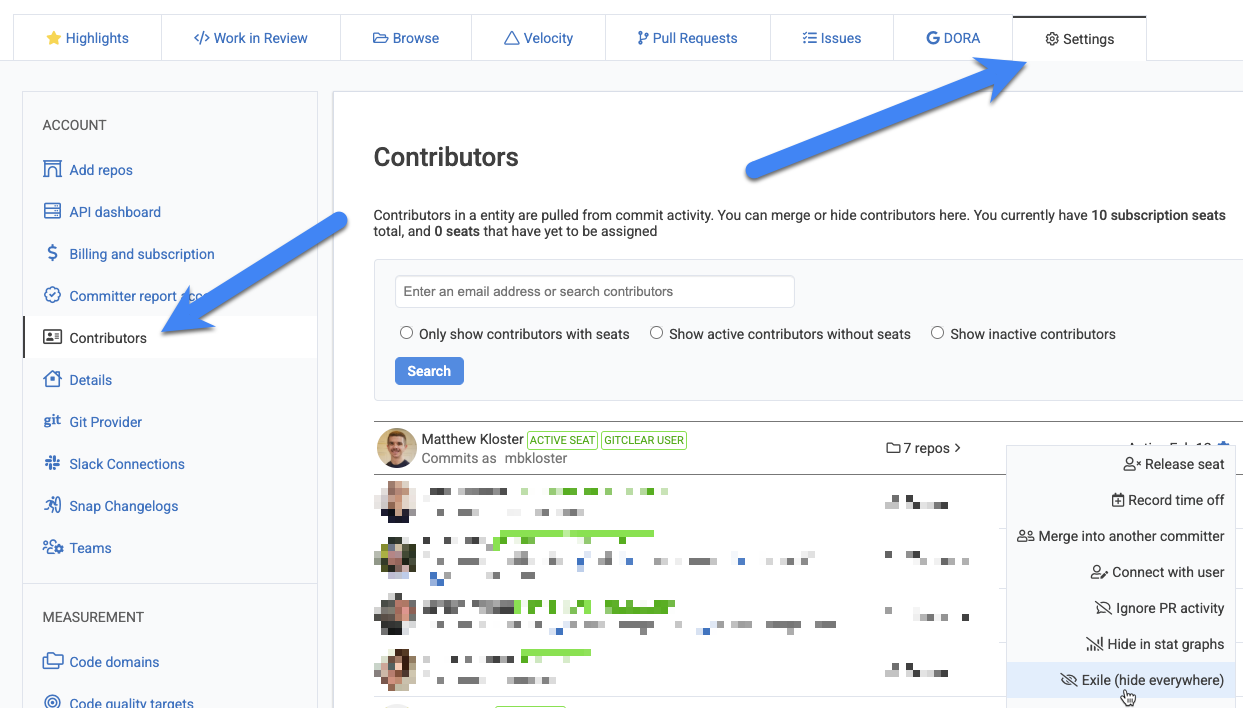
Navigating to "Exile" a GitClear contributor
After confirming that you really want to remove the contributor from all stats and processing, their activity will no longer be processed, and your subscription seat count will be reduced during subsequent billing.
If you decide that you want to restore (un-exile) the contributor later, you can scroll down to the bottom of the "Contributors" page, choose the final page of the set (GitClear gives priority to showing non-exiled contributors) and click to remove exile designation.
linkOption: Show bot in graphs (stats)
As mentioned above, bots are not included in any GitClear graphs by default. If you want to change this, so you can see the commit count, PR activity, etc. of the bots in your repos, you will want to visit the Settings => Contributors page. Click on the gear icon to the right of the bot, and choose "Include in stat graphs".
Toggling whether the bot is included or excluded from stats will not impact your subscription seat count, since the bot was already utilizing a seat on behalf of processing their commit & pull request activity.
linkOption: Ignore pull request activity
If you do not want to see a bot's pull request comments or reviews on GitClear, you can navigate to Settings => Contributors and click the gear icon next to the bot. From there, choose the "Ignore PR activity" option and click the button to confirm your intent.