GitClear offers more than 30 goals that you can set for your developer team to ensure that you're operating at peak efficiency. On this page, we'll show how to set up your team(s) so that the most important notifications are delivered to a Slack channel of your choosing.
linkEstablishing a Slack Connection
The first step to receive GitClear alerts via Slack is to connect to Slack. This takes place in the "Settings" tab under "Messenger Integrations"
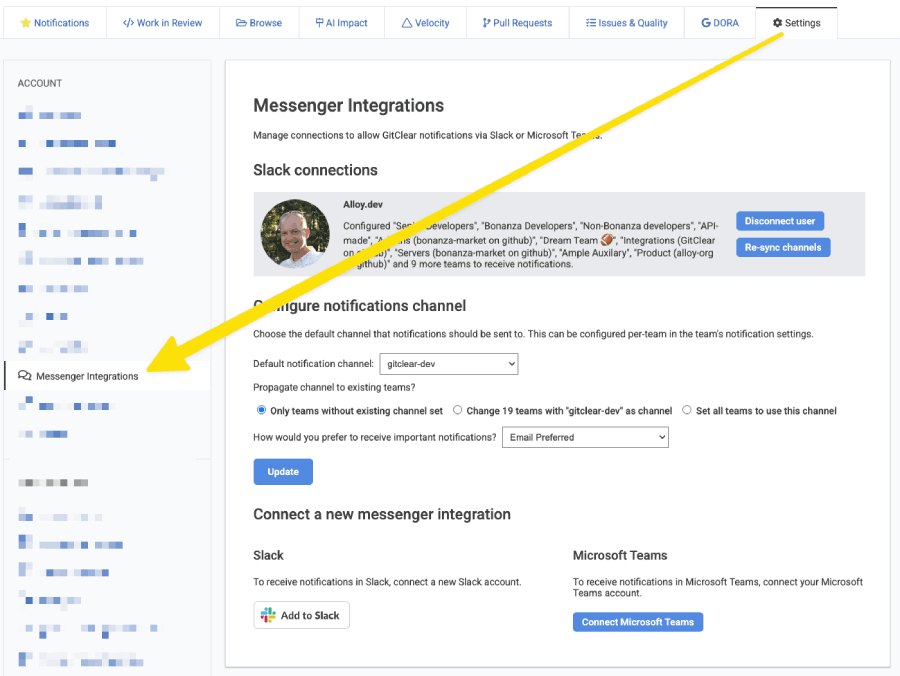
Initiate a new Slack connection via Settings page
Upon clicking the link, you will be prompted to confirm that you would like GitClear to be able to receive your list of Slack channels and write to Slack. GitClear will only post notifications to the channel that you choose, and only then when you have specified that the notification should generate a Slack notification.
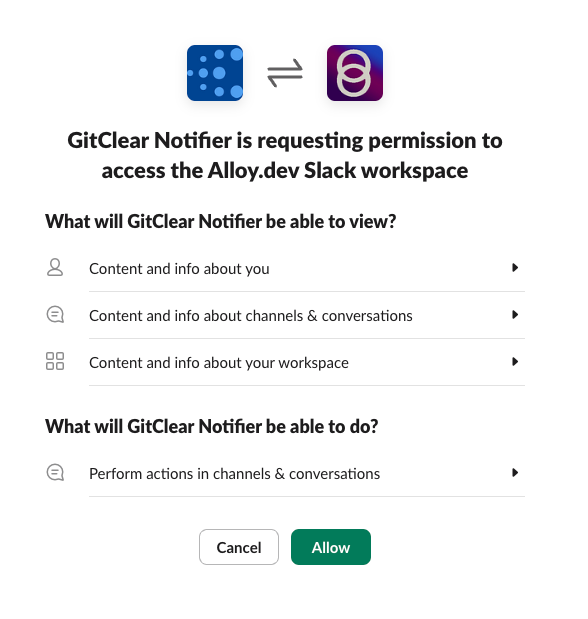
Permissions needed to 1) list channels 2) join the one(s) you pick 3) post messages 4) show who set up the connection
linkPicking a default Slack notification channel
After you have connected to Slack, GitClear will begin to collect a list of the available channels in your Slack instance -- this process usually takes 5 minutes or less. Once it's complete, when you load the Slack Connections page, you will have the opportunity to choose what Slack channel should be used as the default when a team produces a notification that has been designated to post to Slack.
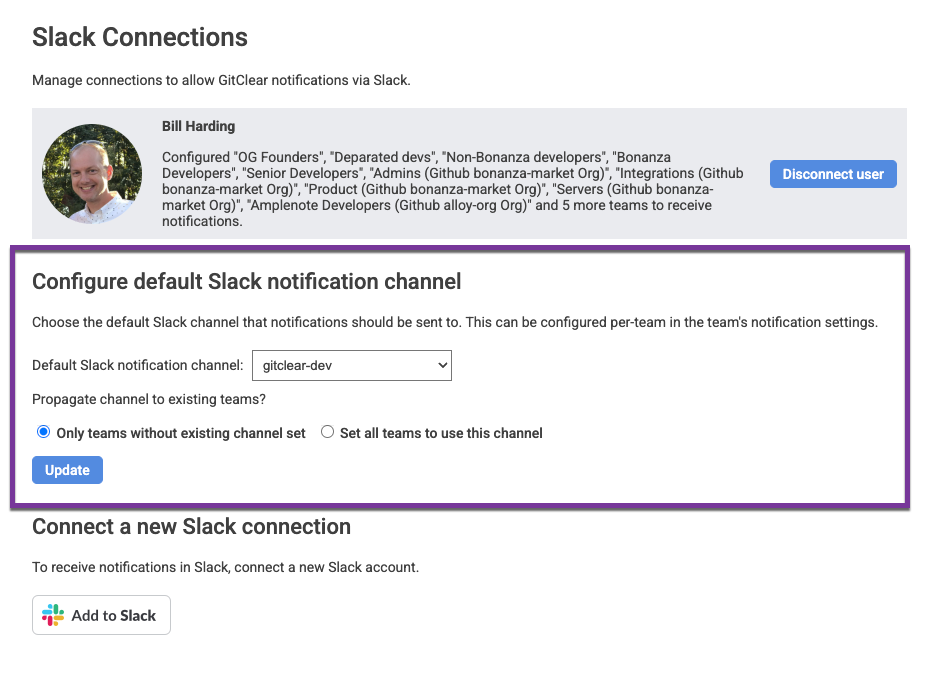
After GitClear populates the list of available Slack channels, you can choose which channel should act as the default for teams
Each GitClear team can specify its own channel that should receive notifications, but especially for companies with a large number of teams, it is convenient to specify a default notification channel, in lieu of choosing the same channel across all of the teams in the entity.
Upon choosing a "Default Slack notification channel," you can also choose whether this channel should propagate to existing teams. By default, GitClear will assign the newly chosen channel to any team that has yet to choose a Slack notification channel, but if you choose "Set all teams to use this channel," then we will overwrite any other Slack channels that were being used by teams for notifications.
linkConnecting multiple Slack users (optional)
In general, it is only necessary to connect one user to Slack to enable GitClear notifications. However, we still recommend connecting 2-3 users if time allows. This ensures that if the original user leaves the company, or if their Slack account becomes unavailable for whatever reason, there will still be a redundant backup connection ensuring that the team will not miss potentially urgent notifications.
You can disconnect a Slack user at any time by clicking the "Disconnect user" button, beside the Slack user's name and channels that utilize connection made by the user.
linkChoosing your notification preference
The "Slack Connections" page allows a user to pick which channel (Slack, email, both, or neither) they want to receive critical notifications in.
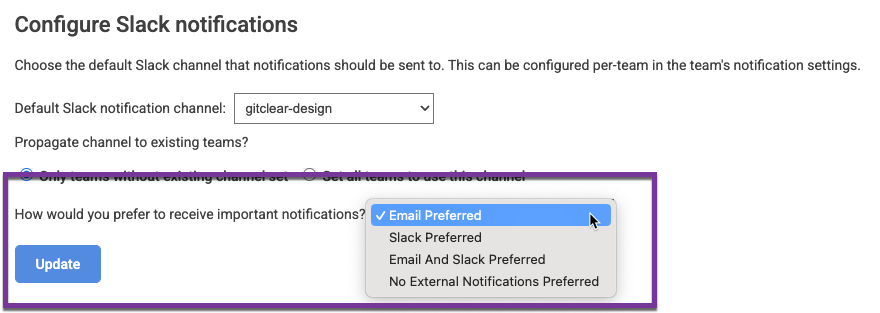
Choose preferred notification medium on the Slack Connections settings page
If you choose "Slack preferred," the most important notifications you set up, that had been set to "Email," will be switched to send via Slack instead. This option provides an expedited path to batch modify all the notifications that you have previously set up.
linkEstablishing a Microsoft Teams connection
Similar to Slack, start by visiting Settings => Account => Messenger Integrations.
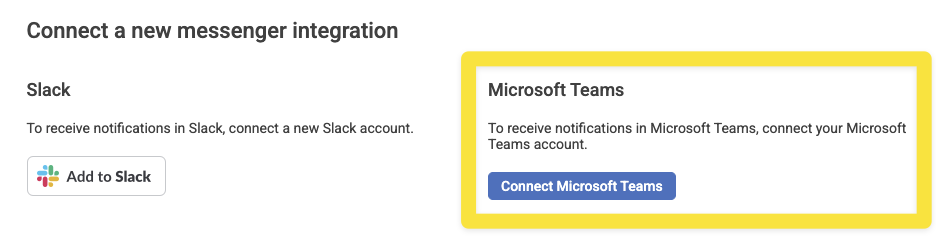
After establishing your Microsoft Teams oauth connection, you'll be able to choose a channel to which messages can be sent. See examples above for specifying the channel that should receive notifications.
linkChoosing which notifications are posted to Slack or Teams
To minimize team distractions, we generally recommend reserving Slack notifications for the most important types of "goals" and "resource notifications" to the team's manager. You can specify which notifications qualify as "important enough to post to Slack" from the "Configurable Notification Settings," available on the "Highlights" tab:
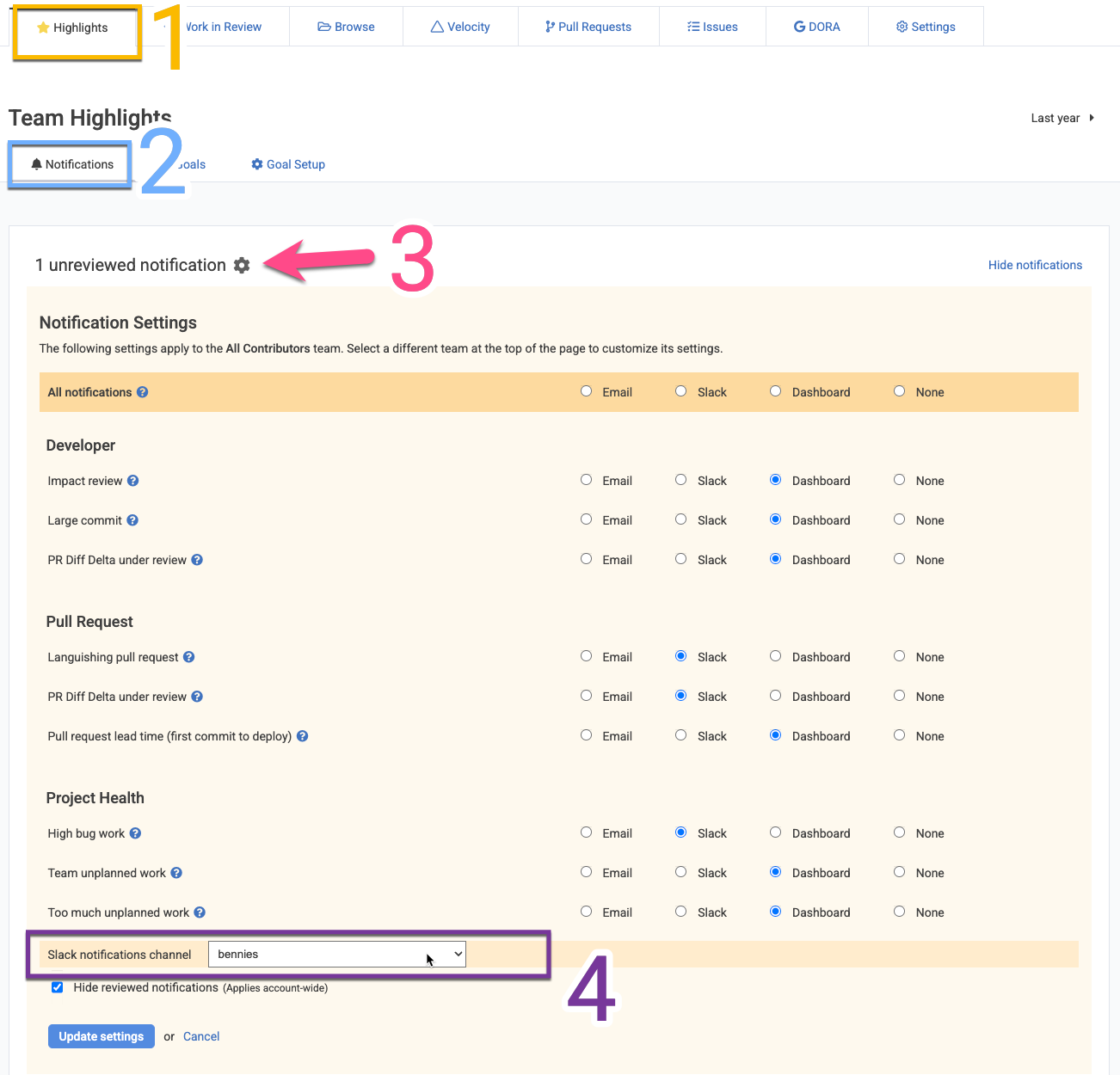
Choosing which Slack channel will be used for notifications, and which notifications should be posted to Slack
When a team has been configured with a Slack notification channel, GitClear will post an aggregated summary of any new notifications that have "Slack" chosen as the method of delivery.
linkReceiving Slack notifications
Once you have picked a channel for notifications, and chosen which notifications warrant the "Slack treatment," you will periodically receive messages posted to the channel you picked. They will look akin to this message:
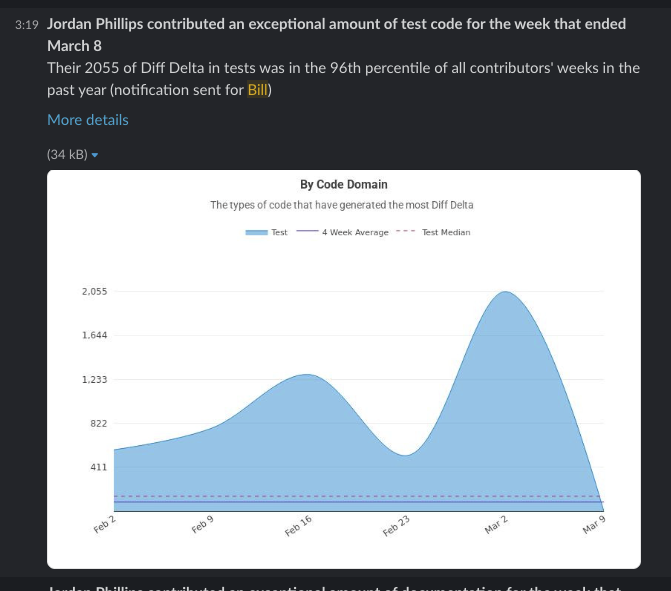
Representative Slack notification celebrating a developer who had an exceptional week
Slack notifications will not be sent more than 3 times per day, and no more than 5 notifications will be sent per batch.
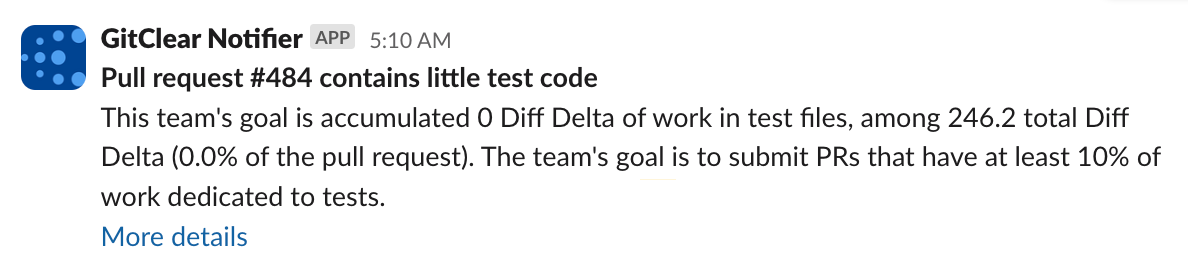
Pull request notification on little test code
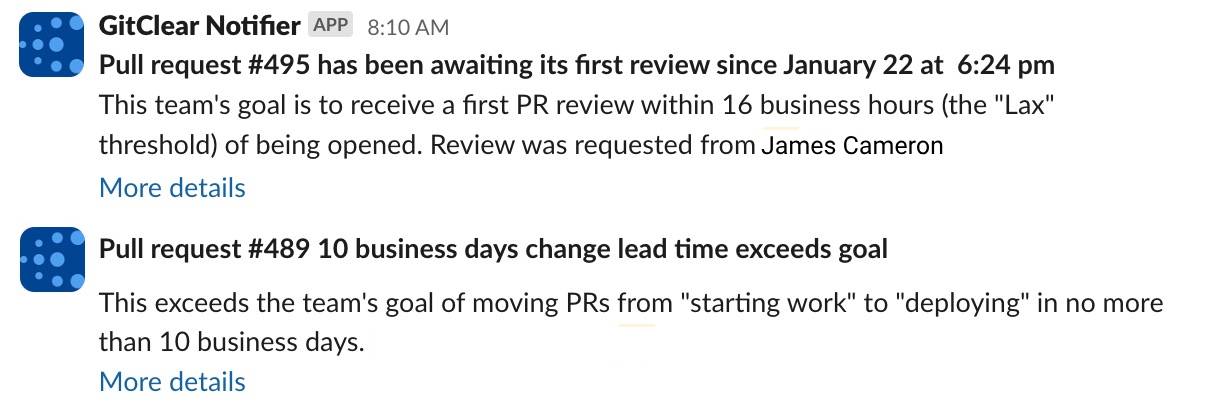
Notifications on PR inactivity
These notifications are set up via Team Goals.
linkSetting default preference to receive notifications via Slack, email, or both
Each GitClear user can choose whether they prefer to receive important notifications via email, Slack, or both. To update your preference for notifications, hover on the "[Your name] Account" in the upper-right corner of GitClear, and choose "Account Settings." Then pick "Notification Preferences" from the "Account Settings" tab:
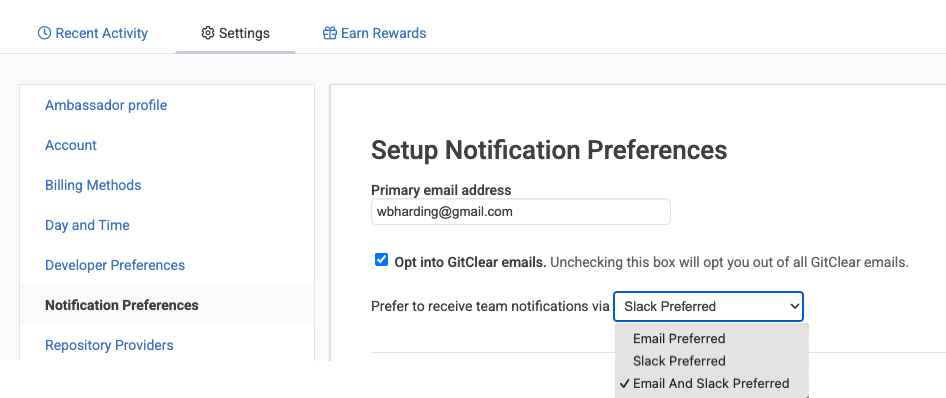
Control how notifications are delivered via "Notification Preferences"
This same preference can also be changed on the "Slack Connections" page, if you have access to it.