linkEvolve or die
In 2026, note app traffic is sinking, and apps have two choices: adapt – promptly, or die.
And so it is, that within one year's time, all four of the major "note" & "task" apps we analyzed have become "everything apps." They now offer AI that helps you go from "what am I trying to achieve?" to "what should I do in the next hour?" Thanks to these snappy updates, there has never been a better time to transform your "intentions" into victories. No "productivity system" required.
But with abundance comes decision: which approach to planning the week best fits your style? Each app has distinct strengths.
Amplenote is the only one that turns your quarterly goals into a time-slotted agenda for you, without writing a single prompt. Notion's Agent sees the most of your wider workspace, but only plans when you ask. TickTick has the most complete chat-based planning recipes and the best end-of-week review. Todoist stays a simple task list and lets ChatGPT or Claude do the planning for it.
Each section below covers the same three questions: where your goals live, how the app helps you pick today's work, and what it costs? Click any underlined phrase to see the finer details in how each app implements the essential planning features.
linkProcrastination elixir: Novelty
The biggest sneaky-useful benefit of a Planner app vs traditional scheduling? When you plan an agenda days beforehand, it's hard to get started because your brain is already tired of seeing it on your schedule. Especially for barnacle tasks that you know you should do, it's incredibly difficult to summon the focus to work on something you've already considered 20+ times.
Here's the magic of a Planning app: the ideas it proposes are familiar, yet novel in a way that your everyday task list never could be. Sometimes the task is novel because it's a task that had been buried in an old note/project you seldom visit. For users of Amplenote and Notion, they are novel because the app itself is brainstorming new task ideas that will help to complete your Project or Goal in a way you might have never considered.
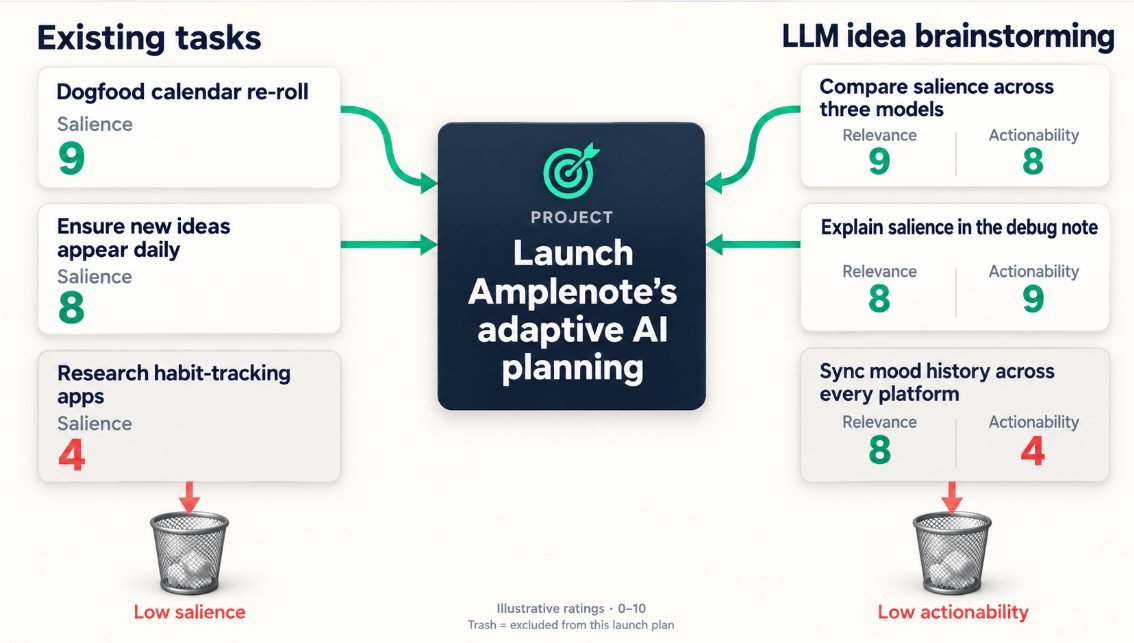
In Amplenote, every time you visit Dashboard or click "Generate Ideas," more new and existing ideas are connected
Continue to see screenshots and videos of how exactly each of these apps helps you to design the perfect plan for your day.
linkAmplenote: goals in, a time-slotted agenda out
Amplenote starts with the goal. The Plan Builder five-step quarterly planning wizard asks what would make this quarter a success, then proposes projects from your existing tasks, with "View sources" showing which tasks inspired each one. You then set a pace and preferred weekdays for each project and drag each project across the months it should be active. No other app here turns goals into a schedule without you writing a prompt.
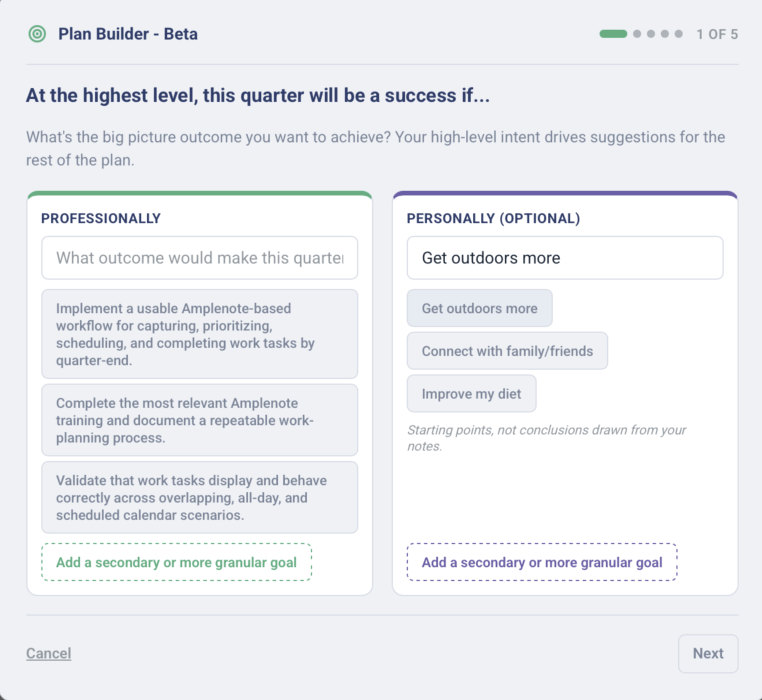
Step 1 of the Plan Builder: what would make this quarter a success?
Then the Calendar does the planning. Click Suggest and the Proposed Agenda fills the open slots between your meetings with tasks that each have a start time and a length, and hovering over one shows why it was picked. Every suggestion weighs five planning factors: weekday projects, prep for upcoming events, tasks you starred as Important, projects that have stalled, and your ambition level. If the picks miss, choose a loadout and re-roll between Quarter plan, Layups and Moonshots.
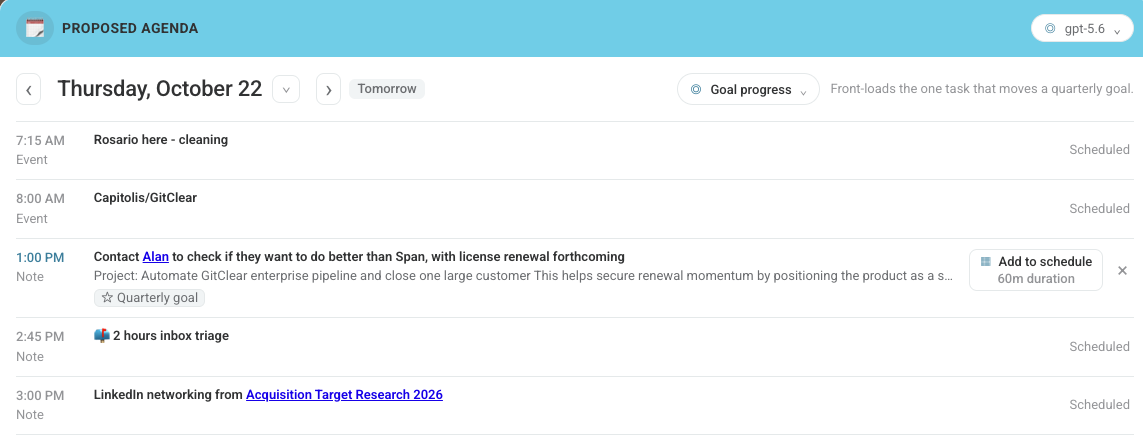
The Proposed Agenda: meetings stay put, and goal tasks fill the gaps with a time and a duration.
▶ Watch: Suggest fills your calendar (demo clip)
Suggestions need Ample Agent Pro or your own LLM key. The Dashboard's DreamTask idea cards also propose brand-new tasks matched to your goals and the day of the week. Two gaps to know about: planning happens through buttons and options rather than a chat, and retrospectives are still coming soon, so TickTick's review recipes are currently the best way to look back on a week. For a 3-minute tour, watch the Plan Builder walkthrough.
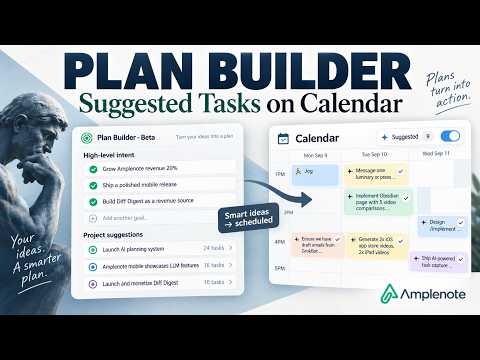
▶ Watch: Plan Builder walkthrough
linkNotion: goals, projects & an Agent that reads them all
Notion has no single "Goals" button. Instead you build three linked databases (Goals/OKRs → Projects → Tasks) and let Notion Agent work across them. You don't have to start from scratch: Notion's gallery has a free Objectives & Key Results Tracker ready-made OKR tracker template, and the Notion Agent help page includes a prompt for drafting OKRs from your own goals docs.

Notion Agent opens as a chat panel inside your workspace.
To choose today's work, you ask the Agent in plain English rather than pressing a "plan my day" button. Once your calendar is connected, it can reshuffle your schedule and time-block tasks from chat. Notion also publishes a team action-plan use case that turns projects into weekly plans for each person. A prompt that works well: "Using my Goals, Projects and Tasks plus today's calendar, pick the three tasks that best move my top goals forward and time-block them in my free slots." Unlike Amplenote, nothing is suggested until you ask, and the Agent only weighs your goals if your databases are linked.
The catch is cost and setup. Full Agent access needs the Business plan, which is about $20 per member per month. Free and Plus plans only get a trial. For a 5-minute tour, watch Notion's Get started with Notion Agent video official Notion Agent walkthrough.

▶ Watch: Get started with your Notion Agent
linkTodoist: simple projects, with ChatGPT doing the thinking
Todoist retired its Goals (Beta) feature on July 13, 2026 why Goals went away and what replaced it. Now the project is the goal: you write the outcome and the reasons behind it in the project description, and you track progress with Project Insights At Risk, Progress and Completed widgets.
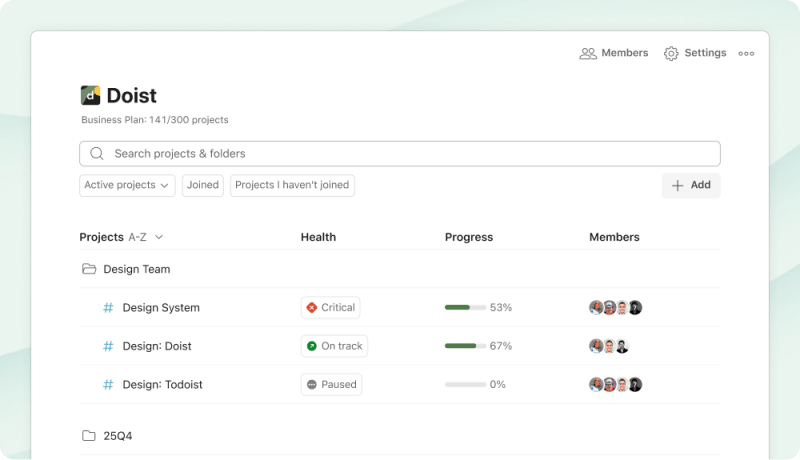
Pro users see completed and open task counts plus a progress bar for every project.
The interesting part is choosing today's work. The official Todoist app in ChatGPT lets ChatGPT read and reschedule your tasks, and Todoist's own suggested prompts fit this use case closely: "What's overdue across my projects? Suggest three tasks to tackle first." Type /todoist in ChatGPT and ask it to put today in a realistic order. ChatGPT can read project descriptions to learn why each project matters, but unlike Amplenote it can't see your calendar unless you connect that separately too.

▶ Watch: Use Todoist in ChatGPT
Inside Todoist itself, Task Assist suggests next steps for a bigger goal. The ChatGPT connector works on every plan, including free. Task Assist and Insights need Pro ($60/yr) or Business ($96/user/yr) what each Todoist plan unlocks.
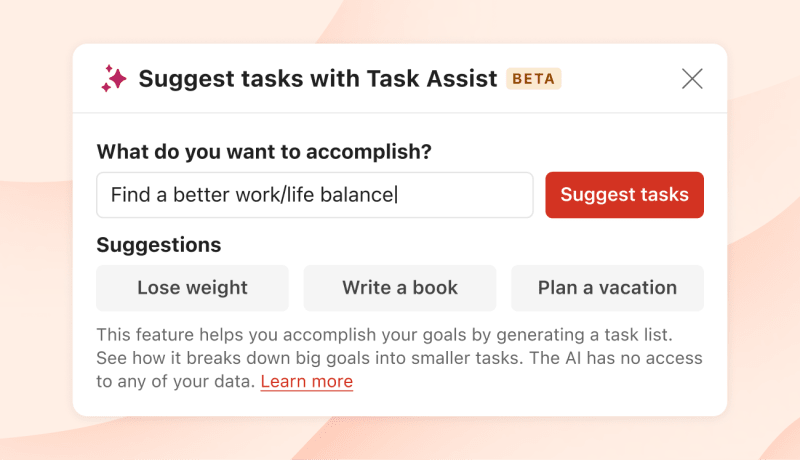
Task Assist runs inside Todoist on web and desktop.
linkTickTick: a chat assistant with ready-made planning recipes
TickTick has no formal Goals or OKR object. Its new AI Assistant, launched October 8, 2026 what shipped in the Oct 8 release, fills that role by turning a goal described in plain language into stages, tasks and habits. TickTick even provides a ready-to-paste goal breakdown prompt.

TickTick's AI Assistant lives in the sidebar and as a floating button on desktop.
Among the chat-based assistants, TickTick's is the most complete for choosing today's work. Its AI use-case library includes a daily-planning recipe that reviews your calendar, overdue tasks and inbox. It then returns today's key tasks, tasks to postpone, a schedule based on priority and estimated time, and buffer time. A sister prompt plans a whole day, week or month. Unlike Amplenote, it ranks by priority and due date rather than by your goals, and it doesn't remember weekday preferences between chats.

The daily-planning prompt in action
To turn it on, go to profile picture → Settings → Features → AI (it works on macOS and Web but not Windows yet). Power users can also connect ChatGPT or Claude through TickTick MCP let outside AIs manage TickTick. Full AI access comes with Premium at $49.99/year TickTick Free vs. Premium. Its review recipes make it the best of the four at looking back on a week or month, but the Assistant is only weeks old, so it has little real-world track record. For a quick visual tour, see this YouTube walkthrough video tour of the new AI Assistant.
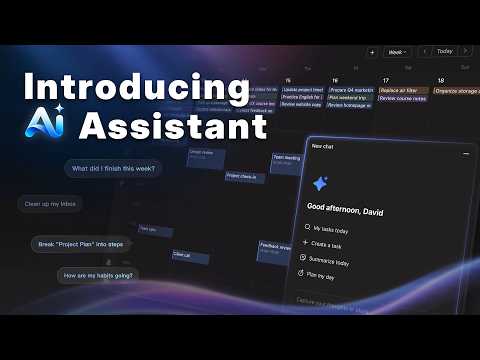
▶ Watch: NEW TickTick AI Assistant