While GitClear's basic team setup is adequate for most customers that want to be able to segment stats at the team level, enterprise customers sometimes find benefit in doing the work to go beyond basic team features.
This page reviews advanced team setup topics, in order of "most applicable to average team" to "most niche."
linkSetting up start/end date for a developer team member's contributions
Available with Unlimited & Enterprise subscriptions |
Why: Developers change teams. If you don't utilize team start/end dates, then all of the developer's past work will suddenly be included with his new team. Since his old team may have used different languages, different sprint composition, etc., it can foul up a lot of important long-term if you change the team of a committer without using start and end dates.
It starts by clicking on the developer's row under "Settings" => "Teams", after you've opened a team besides the default "All Contributors" team.
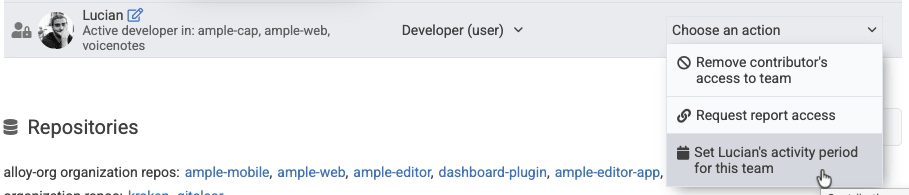
Instead of removing a user, set an end date for their time with the team
After clicking to set the developer's dates with the team, you'll get a popup allowing you to do just that:
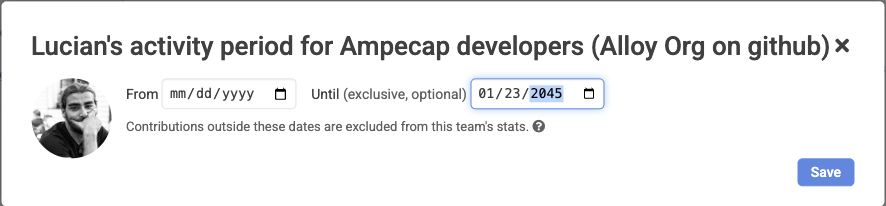
It's design will likely evolve by the time you see it, but you get the gist
When you set a developer to have a start or end date, their stats will not be included on this team when they fall outside that range. Furthermore, the developer won't be shown in cohort comparisons for weeks that don't reside inside the active range.
Assuming that you apply this option when the change is happening, your committer's data will seamlessly switch to accumulating on their new team. If you apply a past date for when the developer began or ended work, expected a 1-2 day lead time for all stats to reprocess without the developer's activity. There is a "Recalculate all settings" button you can find in your Settings if you want to use the nuclear option and regenerate everything (time to generate depends entirely on entity size, it can be 1 hour to 1+ day).
linkRestrict repos included for the team
Why: Sometimes a developer works on more than one team concurrently. Say you have a developer, Jemma, who contributes to the "Fortnite Product" & "Tools" teams. Without Restrict repos by team, both of those teams would begin showing data from repos that aren't in their purview. If Jemma is committing to the "Lore" repo for her Tools time, the "Fortnite Product" team doesn't want to see Lore-related files & directories in the rundown of its "Highest velocity" (or "Greatest tech debt") directories.
In general, the best practice is to just leave "Automatically add contributor repos to team," so you don't need to manually list every repo the team might work on.
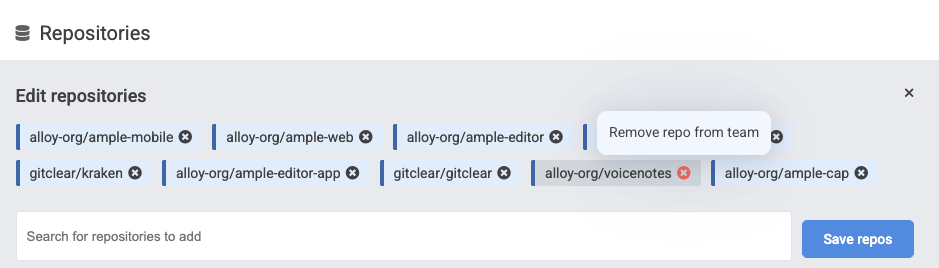
Click a red X to remove stats from that repo for this team
If you have team members that work shifts for other teams, click the "Edit repos" button to open the list of current "team repos," then click the "X" next to each one that isn't a concern of your team.
linkBatch invite members
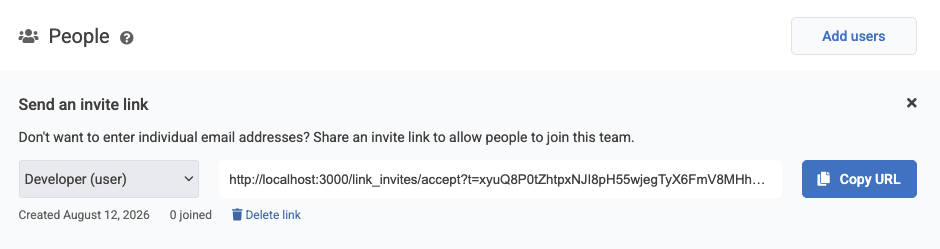
While it's possible to set up teams via the API, or manually via the "User add" form, the fastest way to bulk add collaborators into a team is to distribute an invite link they can use. Accessing this one isn't quite as complicated as the rest. Just click "Invite users":
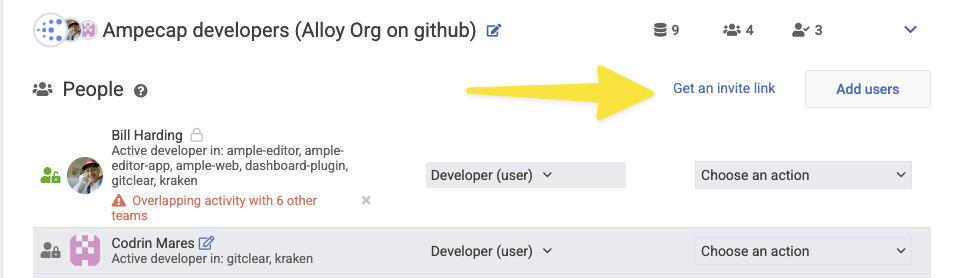
Then choose what role the invited users should assume: