Every product development team has some form of change log that keeps track of what features, improvements, and bug fixes are underway or recently finished. Often times, companies offer a specific version of their change log targeted at their customers. Usually a product manager is saddled with the responsibility of periodically interrupting developers (via a regularly scheduled check in or ad hoc) to collect information about what has recently launched. The manager is then expected to produce some visual artifact that can accompany the change log. When the feature is still pending its final deploy, the manager may need to browse through a staging server in order to capture a screenshot of the new feature.
The inefficiencies in this "business as usual" approach to change logs are numerous:
Developers are knocked out of their flow state in order to report on what work they have finished lately (or what they are currently progressing on)
The developer themself often struggles to remember what was worked on beyond the last few days, requiring them to clear their resident "programming memory" while they sift through a list of their recent commits
Significant bug fixes & features "fall through the cracks" if the manager is out (or busy) during a particular week
The process of producing a screenshot or video of the feature is a tedious, challenging prospect for managers. Doubly when the feature has not been fully deployed to production
When these shortcomings of the "changelog gathering" process are experienced month after month, it becomes clear why a developer's annual performance review often neglects to appreciate a developer's biggest achievements from 6-12 months prior
After suffering through these problems for years with GitClear's sibling product, Amplenote, it become painfully apparent that the process of keeping track of what was being launched was a problem worth solving.
Enter the "developer boot":
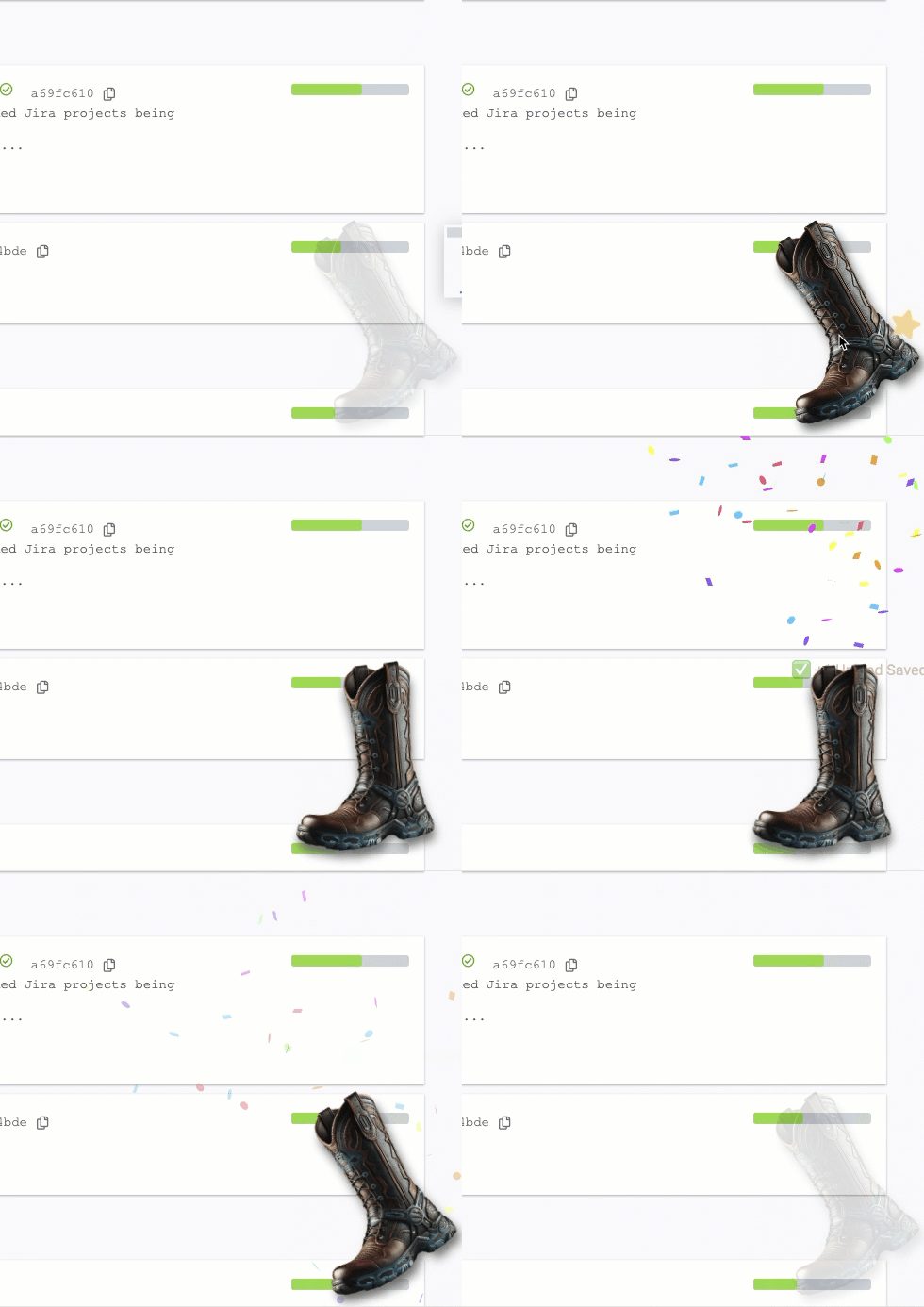
When a developer drags a screenshot of their work into the resident boot, their progress is memorialized
This article will describe GitClear's system that allows both public and private (gated behind login) change logs to be generated with the minimum possible busywork.
linkLive example
Curious how GitClear handles a real-world changelog? Look no further than our own public changelog. It will look something like this:
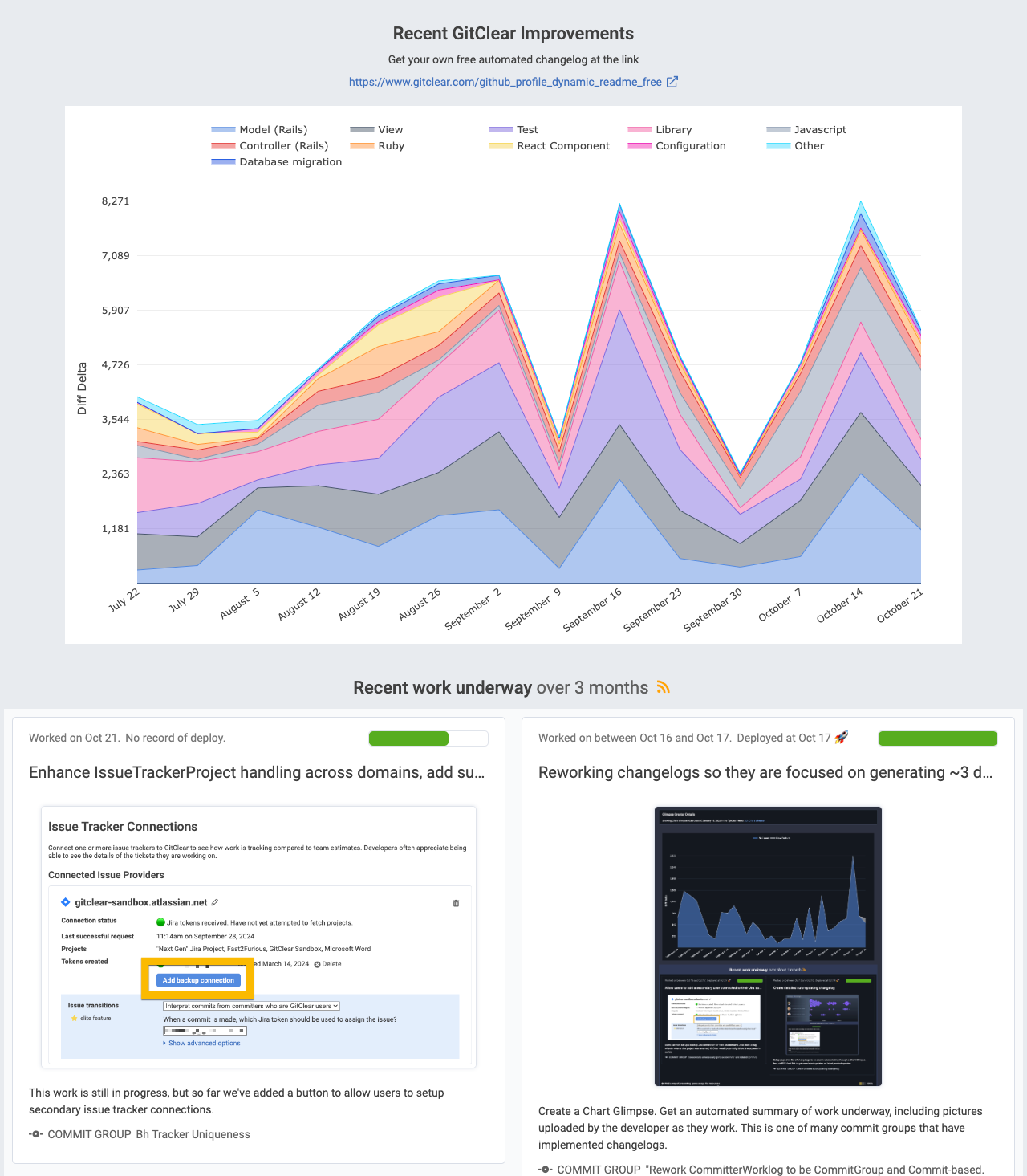
An automated peek into what is new for GitClear
The best part about this changelog? No Product Manager time was required.
To generate the content for our automated changelog, our developers are in the habit of dropping screenshots into "the boot" (visible when logged in a developer) as they make progress on their implementation. The immediate payoff for the developer is, if their team holds a weekly- or monthly-work-in-progress meeting, they will not need to dig back through their past work to locate the meaningful progress they made. Their own personal gallery of visual changelogs can be used to conjure the story of what they have worked on lately.
linkCreate an automated changelog
An "automated changelog" is an alternate label for what is known on GitClear as a "Chart Glimpse." A detailed rundown of how to create a Chart Glimpse is provided on its help page.
The simplest summary of how to create one:
Use the resource selector (in upper-left corner of every page) to choose what resource will have its changes summarized. For example, to generate the GitClear changelog shown above, we picked the "GitClear" organization (which holds the main "gitclear" repo, plus other sub-repos like "gitclear-enterprise-licenser"). You can summarize work from a single repo, an organization, or the totality of all the repos that you process on GitClear (known as your "entity").
Browse through your tabs to find a fitting "hero chart" to show above your changelog (optional, see item c, below, if you don't want a hero chart). Once you have picked a sufficiently illustrative chart, click the Chart Glimpse icon shown to the right of the chart title.
If you don't want to reveal much information about the long-term velocity of your team, you can visit the "Code Review" tab and use the Commit Activity browser as your hero chart
If you want to show a graph that doesn't have a Chart Glimpse icon next to it, click on the Chart Title. This will reload the page with that chart as the focus. After the page has reloaded, the Chart Glimpse icon will serve to get you started with the chart you desire.
If you don't want to show a chart above your automated changelog, you can click the "Chart Glimpse" icon on whatever page you happen to be visiting (usually the "Code Review" tab). Then, on the ensuing page where you configure your Chart Glimpse, you can pick "No chart (changelog only)"
This brings us to the page where you will set up your chart glimpse / automated changelog. Most of the options should be self-explanatory. The key options for our purposes here are the "Show Changelog" radio buttons. You need to choose "Yes, via #publish" or "Publish every ticket" to show changelogs.
(Optional) Choose a "title" and utilize the fields in the "Customer-Facing Options" to give visitors to your changelog extra context about what they are seeing.
After you've finished these steps: Congratulations! You now have an automatically-updating changelog that can be posted anywhere that HTML or image tags are allowed. 🎉