This article describes how to edit title, description, and other details from individual Committer Changelogs. Individual Changelogs are aggregated into Snap Changelogs, which can be published anywhere that an image file can be placed.
Articles & videos on Snap Changelogs (the containers that collect "Committer Changelogs") include:
Progress updates through a png: Snap Changelog concept & config options describes what Snap Changelogs can do for a team
Best Dynamic GitHub Profile Widget shows some live examples of the feature in action
The focus of this article is specifically on "how work gets promoted to the Committer Changelog list," and how developers or managers can tweak the changelog content after it is drafted.
linkHow work gets promoted to the "Changelog Review" tab
A collection of heuristics are summed to identify when a consequential unit of work has been produced.
linkAutomated Changelog nomination process
Empirically, we have found that the "sweet spot" for "enough work that there is something interesting to screenshot and describe" is about 3-5 days of work, for a developer who authors 1-3 commits per day.
Consequently, GitClear is always searching for commits to bundle together into Commit Groups that can double as Committer Changelogs. When the system discovers commits that are similar by virtue of "one revises the other" or "they implement the same PR/Jira ticket" or "working in the same files/directories" (among ~10 other grouping factors), and those commits coalesce into a 3-5 day chunk, it will be proposed as a possible changelog.
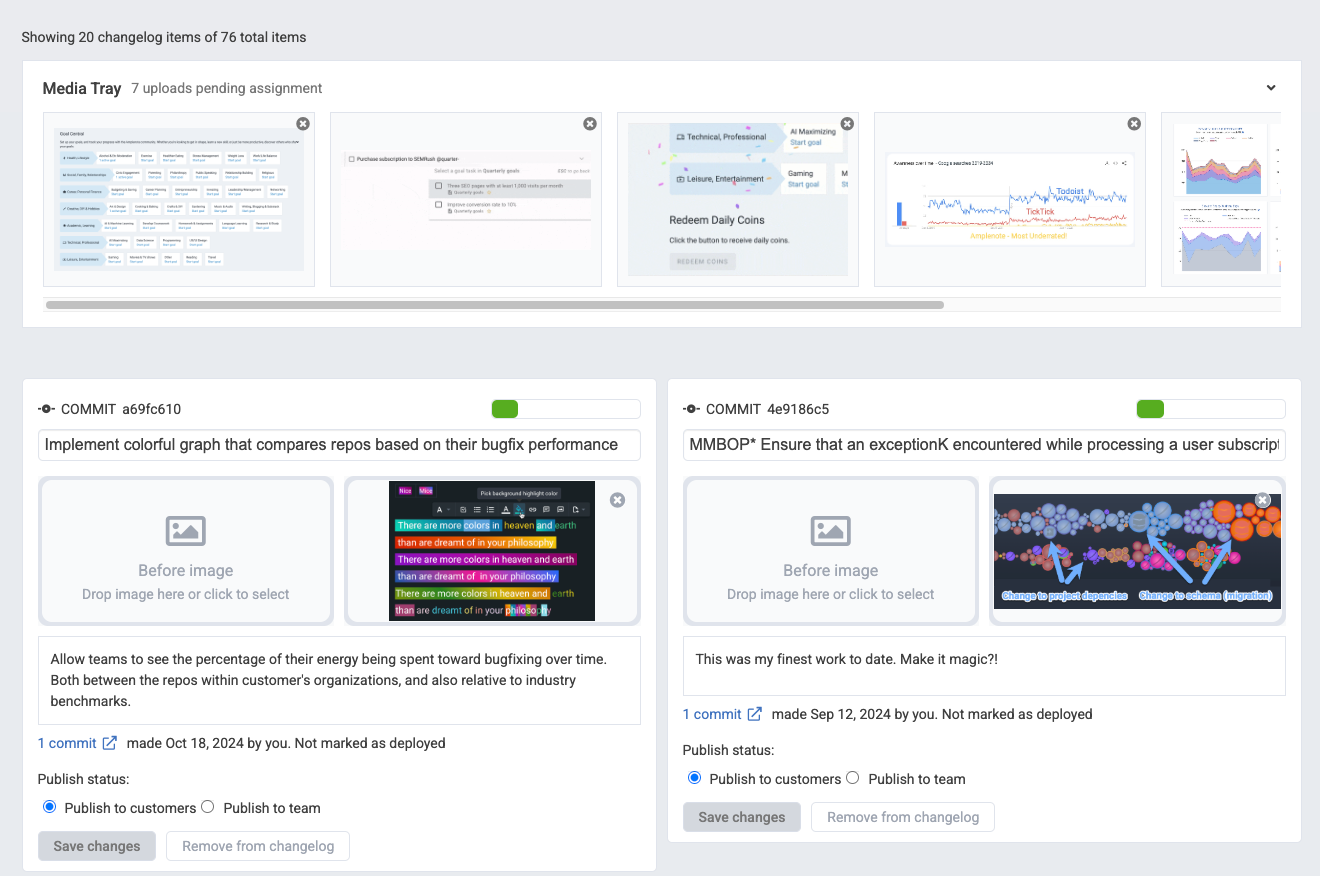
Choosing which changelogs should be published on the Changelog Review tab
In general, the changelogs that are automatically created need to be human-approved before they will show in the public changelog. The exception is if you set up a Snap Changelog with the option to "Publish every ticket & large project." If that option is enabled, then merely working on a Jira issue will be grounds for it to show up in the Snap Changelog.
linkBundling commits that work on a pull request or Jira/GitHub issue
Any time that a developer merges a PR or works on a Jira, it will be proposed as a changelog, unless it represents very little work. When a PR or a Jira is nominated as a changelog, GitClear will initially label the change with the title of the issue (if it exists) or the pull request (if there was no issue referenced).
linkPreparing commits that do not reference a pull request or Jira
Solo developers often work without an issue tracker, or with a marginal issue tracker. For developers or small teams that don't use pull requests or an issue tracker, GitClear will group commits by the traditional heuristics described in our Commit Group documentation.
linkManually promoting changelog commits
Sometimes there is a commit that you're working on that you know contains work that's worth sharing. To ensure that a commit (and the work around it, if similar) will graduate to a Committer Changelog, the commit message should be prefixed by #pub e.g., #pub Implemented colored text in editor would automatically publish a changelog to whatever Snap Changelogs include the repo for the commit. The default title for the changelog is specified by whatever text follows "#pub". You can edit the title and description for the changelog by visiting the Changelog Review tab.
If you're a manager that wants to publicize recent work that the developer failed to prefix with a "#pub" demarcator, you can posthumously promote a commit to a Committer Changelog by clicking the "Publish" button in the list of commits:

Click to designate a published commit from the commits list
Or when viewing the commit(s):

Once a commit is published, any images that have been uploaded will consider the title of the commit in potentially matching the image to the work.
linkEditing work in the Changelog Review tab
After commits have been vetted for relevance, the most interesting looking groups of changes are presented to the developer in a list available on the Changelog Review tab. Here is an explanation of the elements of the Changelog Review page.
linkFilter and view control options
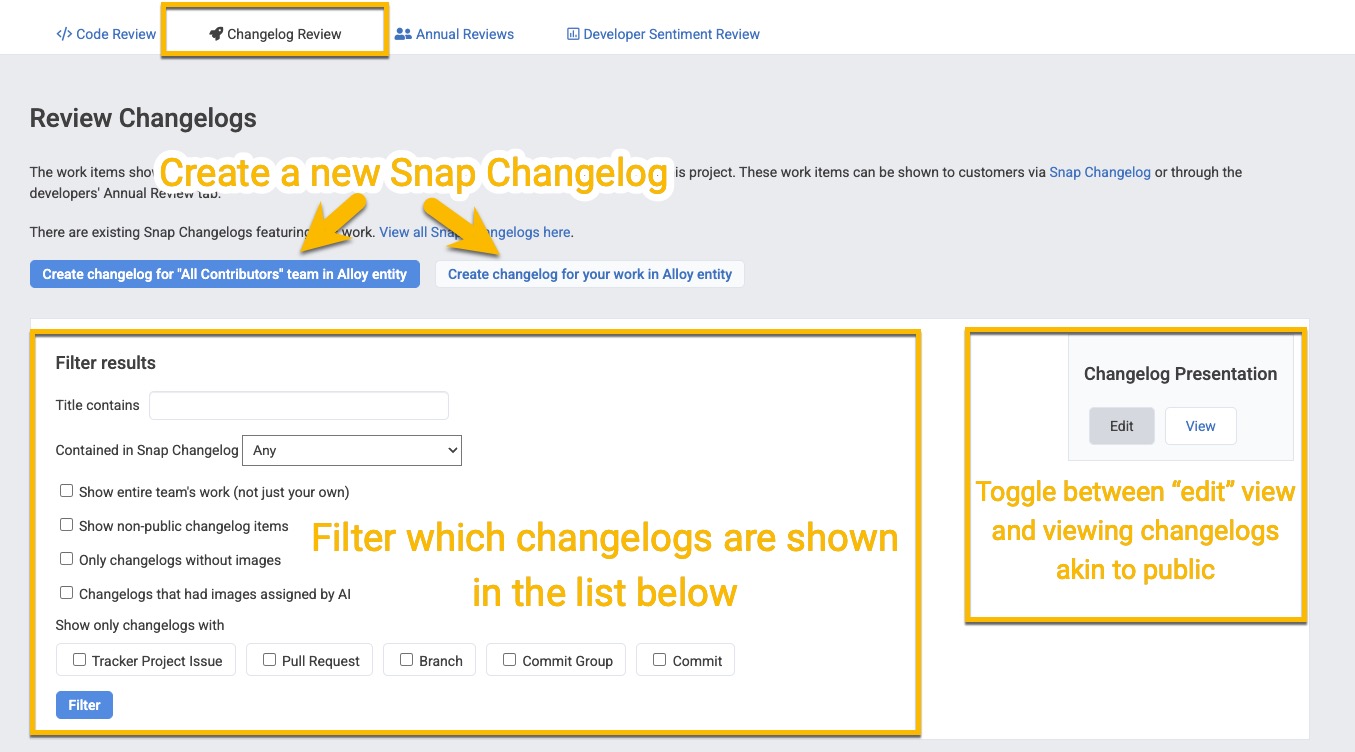
Top-of-page options to filter which changelogs are shown, and how they're shown
If you recently uploaded a screenshot and you don't see it among the changelogs, try clicking the "Changelogs that had images assigned by AI" box, and you can find the specific changelog that your image was assigned to. If the media was assigned to the wrong changelog, you can unassign it, or choose a different changelog for it to be assigned to. We use two independent AI services to corroborate which screenshot belongs to which git commit(s), so we expect that the "false positive" rate should be low. But admittedly, what GitClear is trying has, to our knowledge, never been achieved before, so it probably won't work 100% right during early 2025 (less than a year after its debut).
linkUploaded Media Tray
The "sticky" Uploaded Media Tray remains available as you scroll through the remainder of the page, allowing uploaded media to be dragged into the change it's most related to.
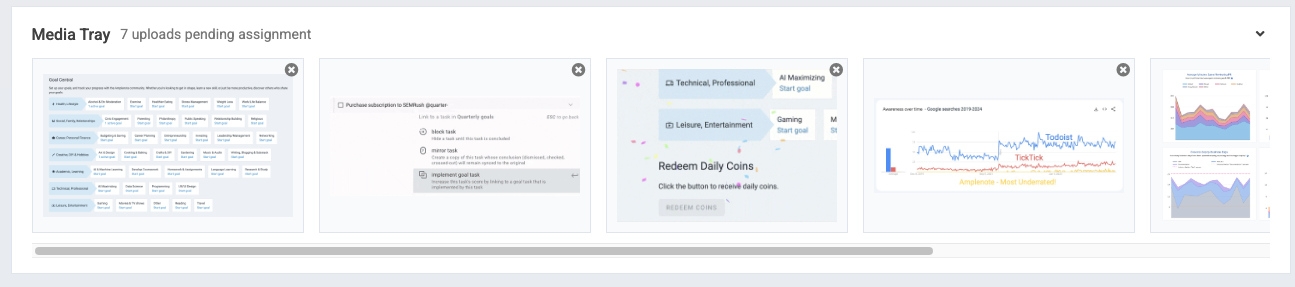
When you drag an image or video on to "the boot," or when you paste an image while focused on a page where the boot is present, GitClear will receive your image/video and analyze whether it's possible to pick out which changelog it seems to be associated with.
Unless/until AI is able to confidently associate your upload with a change description, it will be placed in the Media Tray. From the Media Tray, you can drag an image into the "Before" or "After" spot in any changelog form.
linkChangelog forms
This form is where individual changelogs come to life.
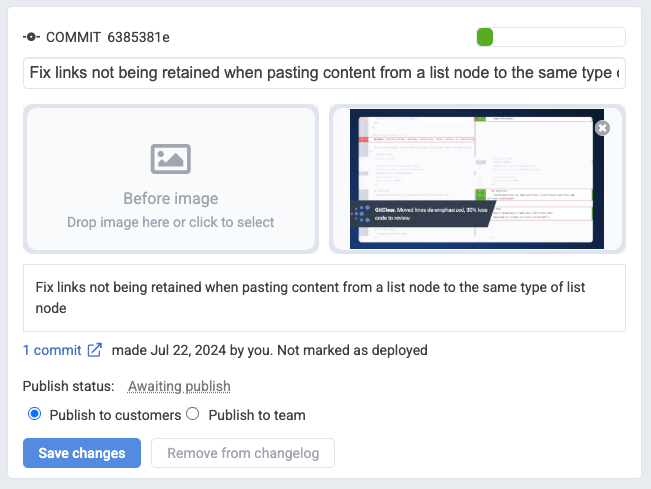
Editing an individual changelog
If the changelog has a gray "Awaiting publish" label next to "Publish status," it is not yet included in any public Snap Changelogs. To publish it, you need to either focus the title/description and press "Cmd-Enter" (macOS) or "Ctrl-Enter" (PC) to confirm the title and description that you want to use to describe the work.
If there is a "Before Image," you can drag that in to the slot on the left side of the form to let viewers see how the feature changed thanks to your work.
The upper-left of the "Changelog form" shows the largest unit of work associated with the change. Often times this shows a Jira ticket, but it's common that many changelogs will all share the same Jira ticket, if the ticket is large enough to take 1+ week to author. That a manager or customer can see incremental progress on a Jira is one of the most appreciated elements of Snap Changelogs from the standpoint of its users. Less need to wait nervously to discover if the Jira has totally stumped the developer, or if they are 95% done.
linkMarked as deployed
The changelog form, like individual changelogs within a Snap Changelog, has a label describing whether the work is known to have been deployed yet. The determination of whether work has deployed is controlled by GitClear's release tracking infrastructure. Any customer can set up release tracking (through commit message, branch, API call, and more) regardless of their subscription status.
linkHow do individual Changelogs get assigned to published Snap Changelogs?
A Snap Changelog aggregates every individual changelog where the committer/repo of the change fall in the bounds of the committers & repos included by the Snap Changelog.
As described in the Snap Changelog setup documentation, when a user sets up their Snap Changelog, they have the chance to choose "Which team?" (i.e., which committers) and "Which resource?" (i.e., which repos) is this Snap Changelog being initialized to show (in fact, you already saw two buttons to create Snaps earlier on this page). By default, the Snap Changelog will show all work as far back as the date selector at the time the Snap Changelog was created, but it's possible during Snap setup (or editing) to change how far back a particular Snap will go back in search of individual changelogs.