Ample Copilot allows you to find notes based on meaning, concepts, and natural language questions, not just exact keywords. This is powered by a technology called vector embeddings stored in locally in your browser (CopilotDB).
linkHow it Works: CopilotDB & Embeddings
Embeddings - Understanding Your Notes: When you "sync" your notes with CopilotDB, the plugin reads chunks of your notes. Using an embedding model (either a local one running in your browser or a more powerful one via an external API), it converts these text chunks into numerical representations called embeddings. Think of embeddings as coordinates that place notes with similar meanings close to each other in a high-dimensional space.
CopilotDB - Storing the Embeddings: These embeddings need to be stored somewhere for fast retrieval. Ample Copilot uses CopilotDB (duckdb-wasm wrapper), a vector database that resides directly within your browser OPFS. This keeps your note embeddings private on your machine.
The Search Process:
When you type a natural language query (e.g., "meeting notes about project alpha planning" in the Search UI, or via @notes in chat), your query is also converted into an embedding using the same model.
Ample Copilot then searches the CopilotDB to find the note embeddings that are mathematically closest (most similar) to your query embedding.
The notes corresponding to these closest embeddings are returned as your search results.
linkSyncing Notes with CopilotDB
Syncing is essential. It's the process of creating or updating the embeddings in CopilotDB. Without a synced database, natural language search and related note features won't work correctly. You need to sync periodically (especially after significant note changes) to keep the search index up-to-date.
How to Sync:
Approach 1 (Search UI Menu):
Open the "Search / Related Notes" UI (e.g., via the Command Palette Ctrl+O).
Click the menu icon (often three dots or lines) in the Search UI.
Check the sync status:
Not synced: Many changes; manual sync required.
Partially synced: Some notes indexed; search might be incomplete.
Fully synced: Up-to-date; search will provide the best results.
Click "Sync notes with CopilotDB".
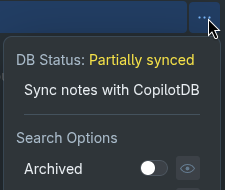
Approach 2 (Command Palette):
Press Ctrl+O (or Cmd+O).
Search for and run the command "Sync notes with CopilotDB".

The sync process might take some time, especially the first time or if you have many notes. It is recommended to provide embedding api url and key for better performance. In absence of it, the plugin will load a small embedding model to generate embedding (extremely slow and may crash browser).
linkUsing Natural Language Search
Once your CopilotDB is synced:
Via Search UI:
Open the "Search / Related Notes" UI (Command Palette: Ctrl+O -> "Search / Related Notes").

Type your natural language query (e.g., "ideas for blog posts about productivity", "summary of discussions with Jane about Q3 budget") into the search bar.
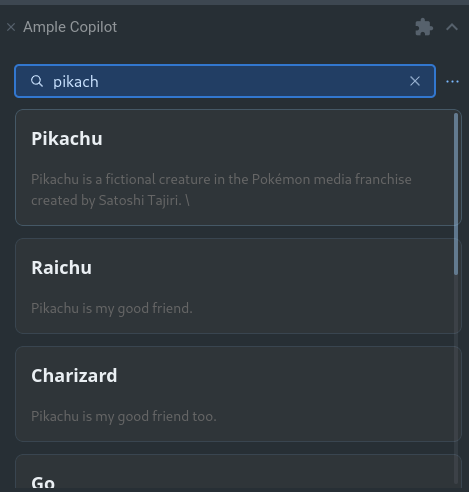
Relevant notes based on semantic similarity will be displayed. This UI also powers the "Related Notes" feature often shown in the note sidebar.
Via Chat UI (@notes tool):
In the Chat UI, type @notes followed by your natural language query.

Example: @notes What were the action items from the last team meeting?
Example: @notes Find research notes about renewable energy sources.