
The Commit Activity Browser is one of GitClear's most popular features. It's also one of our most iterated features, so apologies if the screenshots from this Help Page don't look exactly like your screen. Life comes at you fast. 🙂
link📽️ On Youtube
We have created a series of five minute Youtube videos showing the Commit Activity Browser in action. Here's the latest:
linkInterpreting symbols & icons of Commit Activity Browser
Experienced users can interpret the shapes and icons superimposed on a commit in order to rapidly make sense of where the meaningful changes are happening across their repos.
Below are some icons you'll encounter on the Commit Activity Browser. Note that the border color can vary -- the meaningful indicator of the work this commit includes is captured by its icon.
Commit Icon | Meaning |
 | Pending Review (AI-Based Commit likely): Commit Diff Delta per minute was in the 99th percentile and needs a user to double-check to confirm that it is new work that was authored by the developer who committed it |
 | Deploy/Release. This commit marked a deploy of its repo, per the customer's release rules (by default, any commit that pushes a git tag is designated a repo release) or API call |
 | Database Migration. The work in this commit changed the database schema for its repo. |
 | Added/Updated Dependency. This commit adds a new project dependency, or updates the version of a past dependency (i.e., a change to the |
 | Received Comments. The work in this commit received comments, usually as part of a pull request review. |
 | In unreviewed PR. This commit was part of a pull request that was opened and merged without any feedback from a human reviewer. |
 | Published Change. The work in this commit was published so that the developers' team, or the product's customers, can see progress underway as it occurs. See our Snap Changelogs description or the Amplenote Changelog for examples. |
There are also a few non-icon designations found on commits that can communicate information:
Commit Treatment | Meaning |
 | Release/Deploy. A thick, gradient border indicates that this commit demarcates a deploy of the work in its repo. |
 | Unplanned Work. When a commit has a slash through it, this indicates that the commit is not associated with any issue tracker issue. |
Here are a few real-world examples


link🤓 Hotkeys
Hold down "Shift" when before clicking a commit to view the diff for that specific commit, even if you have commit groups enabled (as is the default).
link🖌️ Visual Annotated Usage Guide
Runs through the options and knowledge that is baked into this tool.
linkRight side: recent commits
The size of each circle in the graph corresponds to its Diff Delta:

The commits with a slash through them are unscheduled work (work not associated with a known issue tracker ticket), this can be particularly illuminating to see how much of your development work is happening "around the edges" in ways that are difficult to notice without GitClear.
link"Use commit group" options

Different options available for reviewing code
There are several ways you can group commits together -- one of many ways that GitClear helps developers save time reviewing code.
link"Colors" options
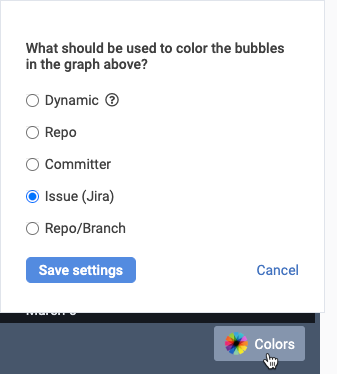
Different options available for controlling how commits are visually identified
The "Colors" menu in the lower-right allows minute control of how commits are visually grouped together in Commit Activity Browser.
See also:
linkLeft side: committers and their biggest recent issues worked
Here's what's available on the left side of the browser:
