Ample Copilot requires you to provide API keys for llm and embedding from third-party AI service providers. This means you have control over which services you use.
link1. Setting up LLM Providers
LLM (Large Language Model) API Key is required for chat and text generation features. This is mandatory.
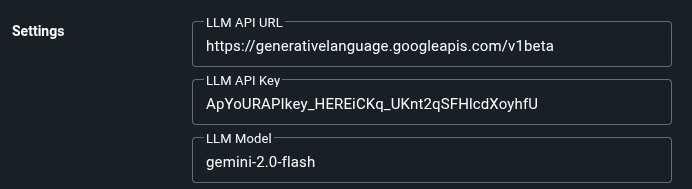
linkA) OpenAI (Recommended)
Create a new secret key and copy it.
In Ample Copilot settings:
LLM API URL: https://api.openai.com/v1
LLM API Key: YOUR_OPENAI_API_KEY
LLM Model: gpt-4o-mini (or another model like gpt-3.5-turbo)
linkB) Google AI Studio (Free)
Create a new API key and copy it.
In Ample Copilot settings:
LLM API URL: https://generativelanguage.googleapis.com/v1beta
LLM API Key: YOUR_API_KEY
LLM Model: gemini-2.5-flash
linkC) Vercel AI Gateway ($5 free credits per month)
Create a new API key and copy it.
In Ample Copilot settings:
LLM API URL: https://ai-gateway.vercel.sh/v1
LLM API Key: YOUR_VERCEL_AI_GATEWAY_API_KEY
LLM Model: gpt-4o-mini
linkD) Fireworks AI (Free Credits Often Available)
Create a new API key and copy it.
In Ample Copilot settings:
LLM API URL: https://api.fireworks.ai/inference/v1
LLM API Key: YOUR_FIREWORKS_API_KEY
LLM Model: accounts/fireworks/models/llama-v3-70b-instruct
linkE) Ollama (Local)
Install Ollama on your computer: https://github.com/ollama/ollama.
Pull a model (e.g., ollama pull llama3.1).
Start the Ollama server: OLLAMA_ORIGINS=amplenote-handler://*,https://plugins.amplenote.com ollama serve
Note: If the server is already running without the origins set, stop the server and restart it with the above command. For instructions to stop the server, see https://github.com/ollama/ollama/issues/690.
In Ample Copilot settings:
LLM API URL: http://localhost:11434/v1
LLM Model: llama3.1 (or the name of the model you pulled)
link2. Setting up Embedding Providers
Embedding are numerical representations of your notes used for natural language search. Embedding are generated from your notes and stored locally in CopilotDB (inside your browser). Generating them locally in the browser can be slow and cause crashes, especially with many notes. Using an external API offloads this process.

⚠️ You need to sync your notes to CopilotDB before you can use natural language search.
⚠️ It is recommended to setup embedding providers for better performance and accuracy. YOU HAVE BEEN WARNED!
linkA) OpenAI Embedding
In Ample Copilot settings:
Embedding API URL: https://api.openai.com/v1
Embedding API Key: YOUR_OPENAI_API_KEY
ℹ️ Presently, performance of OpenAI embedding is not at par with other providers. It is recommended to use Google AI Studio Embedding or Pinecone Embedding instead.
linkB) Google AI Studio Embedding (Free)
In Ample Copilot settings:
Embedding API URL: https://generativelanguage.googleapis.com/v1beta
Embedding API Key: YOUR_GOOGLE_API_KEY
linkC) Fireworks AI Embedding
In Ample Copilot settings:
Embedding API URL: https://api.fireworks.ai/inference/v1
Embedding API Key: YOUR_FIREWORKS_API_KEY
linkD) Pinecone Embedding (Recommended)
In Ample Copilot settings:
Embedding API URL: https://api.pinecone.io/embed
Embedding API Key: YOUR_PINECONE_API_KEY
linkE) Vercel AI Gateway Embedding
In Ample Copilot settings:
Embedding API URL: https://ai-gateway.vercel.sh/v1
Embedding API Key: YOUR_VERCEL_AI_GATEWAY_API_KEY
linkF) Ollama Embedding
Install Ollama on your computer: https://github.com/ollama/ollama.
Pull embedding model: ollama pull snowflake-arctic-embed:33m-s-fp16
Start the Ollama server: OLLAMA_ORIGINS=https://plugins.amplenote.com ollama serve
Note: If the server is already running without the origins set, stop the server and restart it with the above command. For instructions to stop the server, see https://github.com/ollama/ollama/issues/690.
In Ample Copilot settings:
Embedding API URL: http://localhost:11434/v1
link3. Setting up MCP Servers
The Ample Copilot plugin suports SSR MCP servers for enabling the llm to connect to external services for tasks like "Send a email", "Create task in taskade", etc. Currently, only MCP servers from Pipedream provider are confirmed to be working. Other MCP servers might function, but haven't been fully tested.
linkA) Pipedream MCP Servers
Sign up for a pipedream account.
Go to https://mcp.pipedream.com/ and select an app such as Gmail.
Click on connect account and complete the setup.
Copy the pipedream MCP server URL and paste it in the plugin setting bellow:

ℹ️ You can have configure multiple MCP Servers by separating the urls using comma (,). For example,
https://mcp.pipedream.net/0f70f57e-abcd-9796-ebdd771e89/gmail, https://mcp.pipedream.net/244a57e-abcd-9796-ebdd771e89/notion.
⚠️ MCP server support is currently experimental.