
linkHow do I create a new note?
Oh my gosh, there are so many different ways to create a note.
linkCreate a note using the "New note" button
Once you log into Amplenote, click the "New note" button found in the top right corner to start redacting a new note.
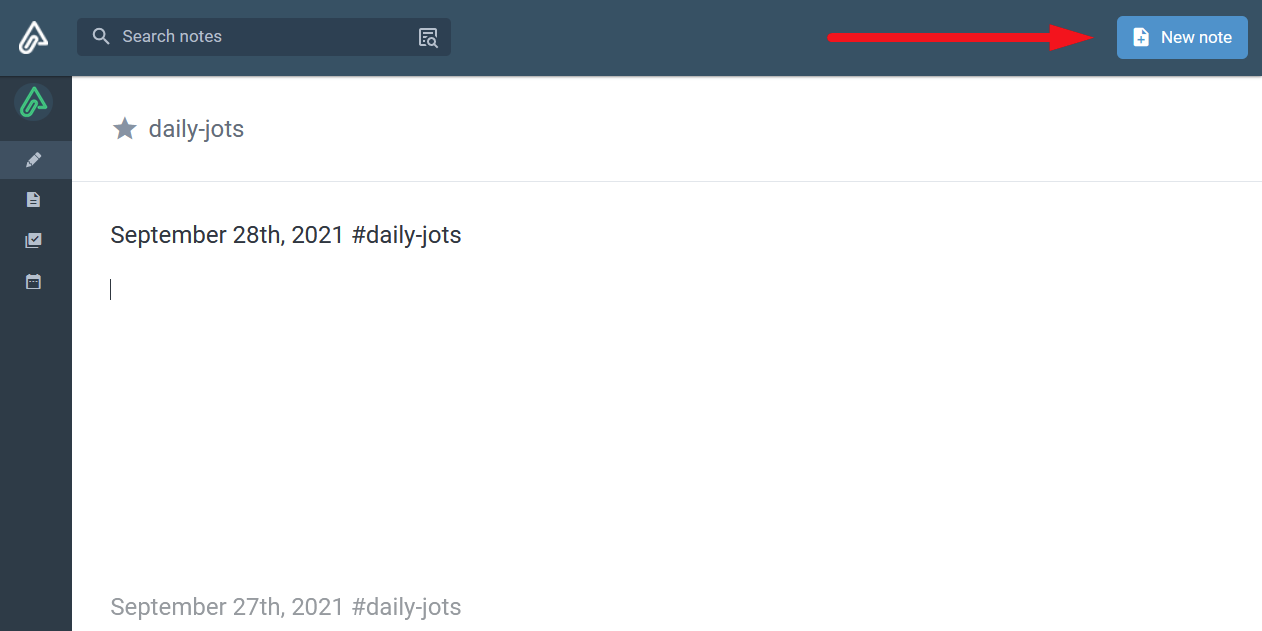
After logging into Amplenote you are automatically taken to the Jots mode. Jots are regular notes that are automatically created for you every day. Pressing the "New note" button will switch to Notes mode and it will open a brand new note for editing.
If you press Cltr-Click or Cmd-Click on the new New note button, the newly created note will be open in the Peek Viewer instead.
linkCreate a note with the note hotkey
In accordance with the hotkey help page:
On macOS: Cmd-Alt-N aka Cmd-Option-N
On PC: Ctrl-Option-N
linkCreate a note using double brackets [[
A subject worth its own page 🙌: Using Double Brackets [[ for Note Creation/Linking
linkCreate new notes from text selection
There are 2 ways to create new notes based on the selected text; both are covered in depth in another help article:
By creating a note titled after the text selection: Note linking guide (at @ and double-bracket [[ notation)#The phrase-linking hotkey (@ or [)
By moving the selected text to a new note: Using Double Brackets [[ for Note Creation/Linking#Extracting text selection to a note.
linkCreate a note from a link
You can make a link to https://www.amplenote.com/notes/new that will create a new note when clicked. You can optionally parameterize this link so that the new note created has a certain title, or comes with certain tags:
The name param will create a note with a certain name. For example, adding ?name=My%20Named%20Note to the end of the new note link will create a note entitled "My Named Note." Click here while logged in to prove it.
The tags param will create your note with one or more tags. For example, adding ?tags=tag-a will create a note tagged with tag-a.
The source param will copy content from another note to use as the starting content for the new note. The value for the source param should be the UUID of a note from your notebook that you want to copy. If you're in a browser, you can get the note's UUID by opening it and copying the UUID from the URL. If you've installed Amplenote, you can get a note URL by clicking the "Copy URL" option from the triple dot in the upper right corner when the note is open. For example, adding source=c1d821d0-fad2-11ea-a5bc-f200a12bf340 would create a new note whose starting content was whatever currently exists in the note with the UUID given.
These parameters can be mixed and matched to allow designing links that will create a new note with a particular name, tag, and template source. For example, a link to https://www.amplenote.com/notes/new?name=Daily%20Plan&tag=todo will create a note named "Daily Plan" with the todo tag applied.
linkCreate a note from a template
We have a dedicated help page for this topic, as there are several different options for creating notes from templates.
linkCreate a note through the mobile quick todo bar
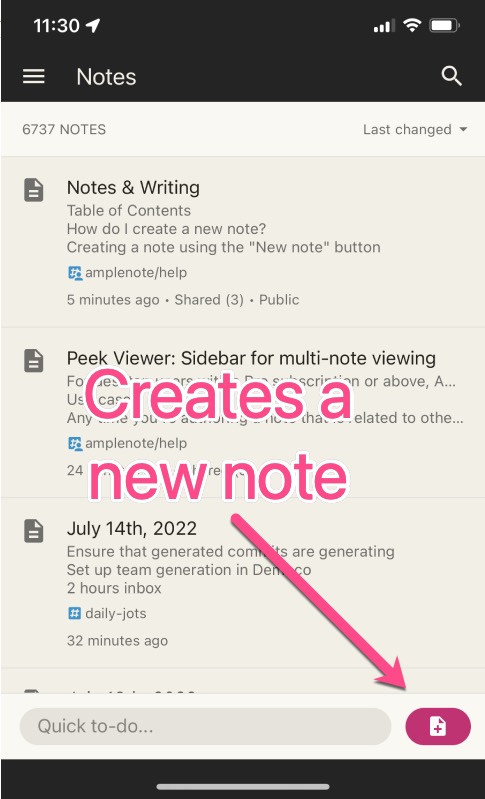
Any time you open the mobile app, you can immediately create a new note using the button at the right side of the Quick Task menu:
linkTransferring tags to new notes & auto-tagging
Check out the dedicated page for this topic: Control auto-tagging of newly linked notes.
link
linkNote content formatting and layout options
Check out the dedicated page here: Note content formatting and page layout options.
linkWhat other note settings are there?
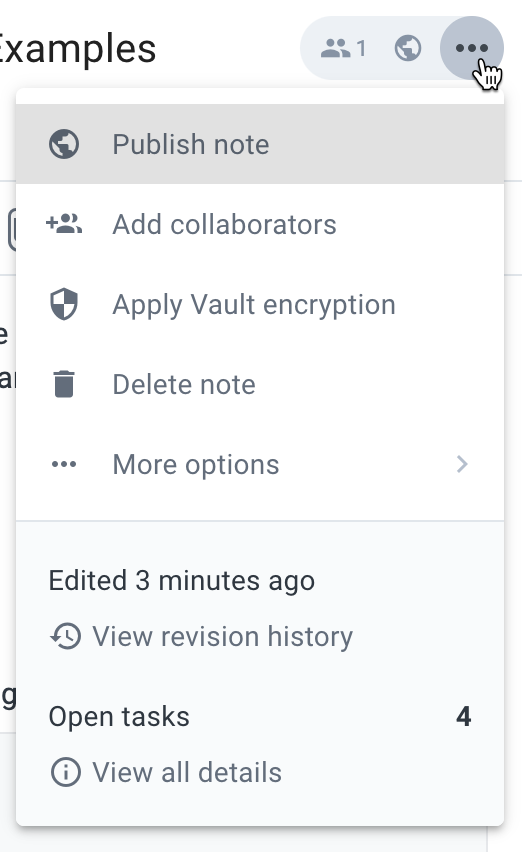
To view individual note settings, click on the triple-dot icon on the right-hand side of the note header.
You can also check out "More options", which as of September 2020 includes a few less-used options:
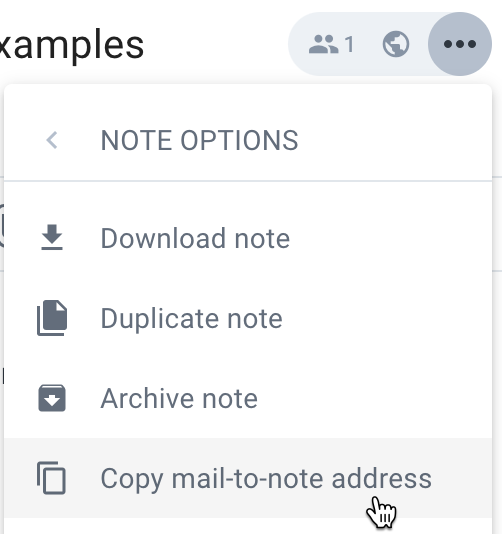
You can activate most of these options on multi-note selections. Check out Multi-note selections and bulk actions.
linkHow do I publish notes to the web?
Publishing notes deserves a separate help page: How do I publish notes to the web?.
linkCollaboration: Sharing notes or tags with individuals, groups, or the web
More on writing together: Collaboration: Sharing notes or tags with individuals, groups, or the web.
linkWhat are Vault Notes and how do I create them?
Read more on Vault Notes over at What are Vault Notes and how do I create them?
linkNote revision history, and restoring old versions
Check out the dedicated help article here.
linkDuplicate Note
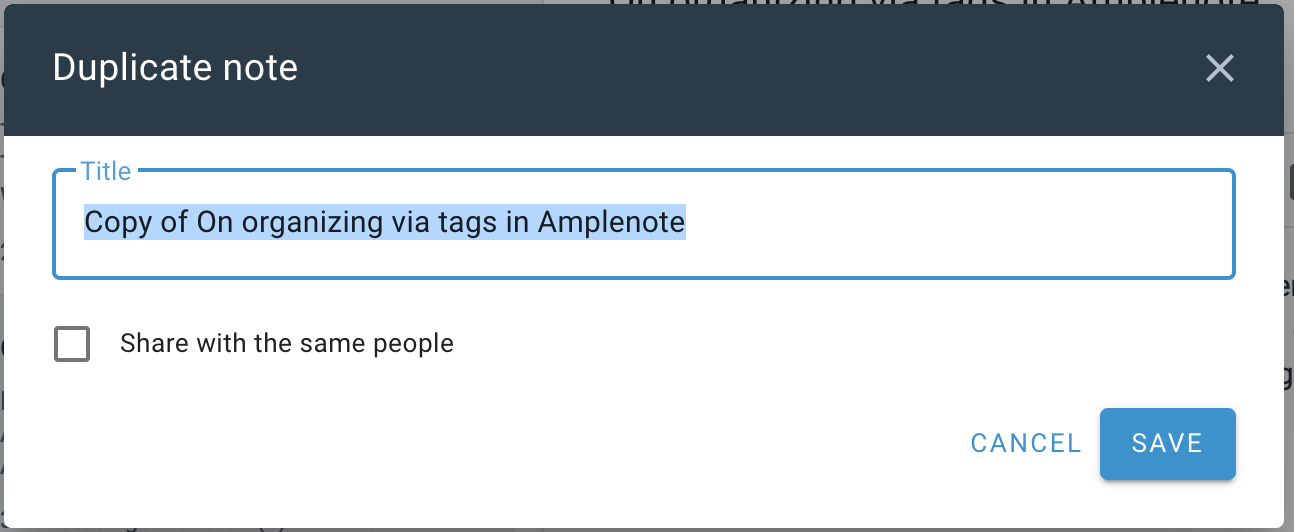
This option will create a new note with the same content. You can create a new title for the note in the duplication process. If the note is not a secure note, you can choose to share with the same people you shared the original note with. Related article: Using note templates to quickly create notes with structure.
linkDownload Note
Download a markdown file (.md) of your note to your device. Markdown files can be viewed in a plain text editors, as well as in many note apps.
linkLock Note
Locking a note will achieve two things:
It will make that note read-only for all users collaborating on it;
Any open tasks residing in this note will be hidden from the Tasks & Calendar Views.
Notes can only be locked and unlocked by their respective owner. In Amplenote, the owner of a note is:
The person that created the shared tag that is applied to a note, if any.
The person that originally created the note, otherwise.
linkArchive Note
Archiving a note will hide it from your list of notes without completely deleting it from your account. The note still exists and is still returned in matching search results. The note is archived indefinitely or until you un-archive it.
To un-archive a note:
Search for the note and open it
Open the note settings menu
Click "Un-archive note"
To see all Archived notes use the filter in the left sidebar or the Archived Notes query.
linkDelete Note
This option will delete the note from your Amplenote account. If you've shared the note with another user, the note will remain in their account unless you remove the share prior to deleting the note.

After deleting a note, Amplenote keeps a copy of it for 30 days for you to restore. After that interval elapses, notes are deleted permanently.
Deleting multiple notes at once? Check out Tag moving, renaming, deleting and merging#Deleting all notes with a certain tag.
linkRestore a deleted note
To view all of the recently deleted notes, use the Deleted Notes filter or the dedicated button at the bottom of the tag sidebar:
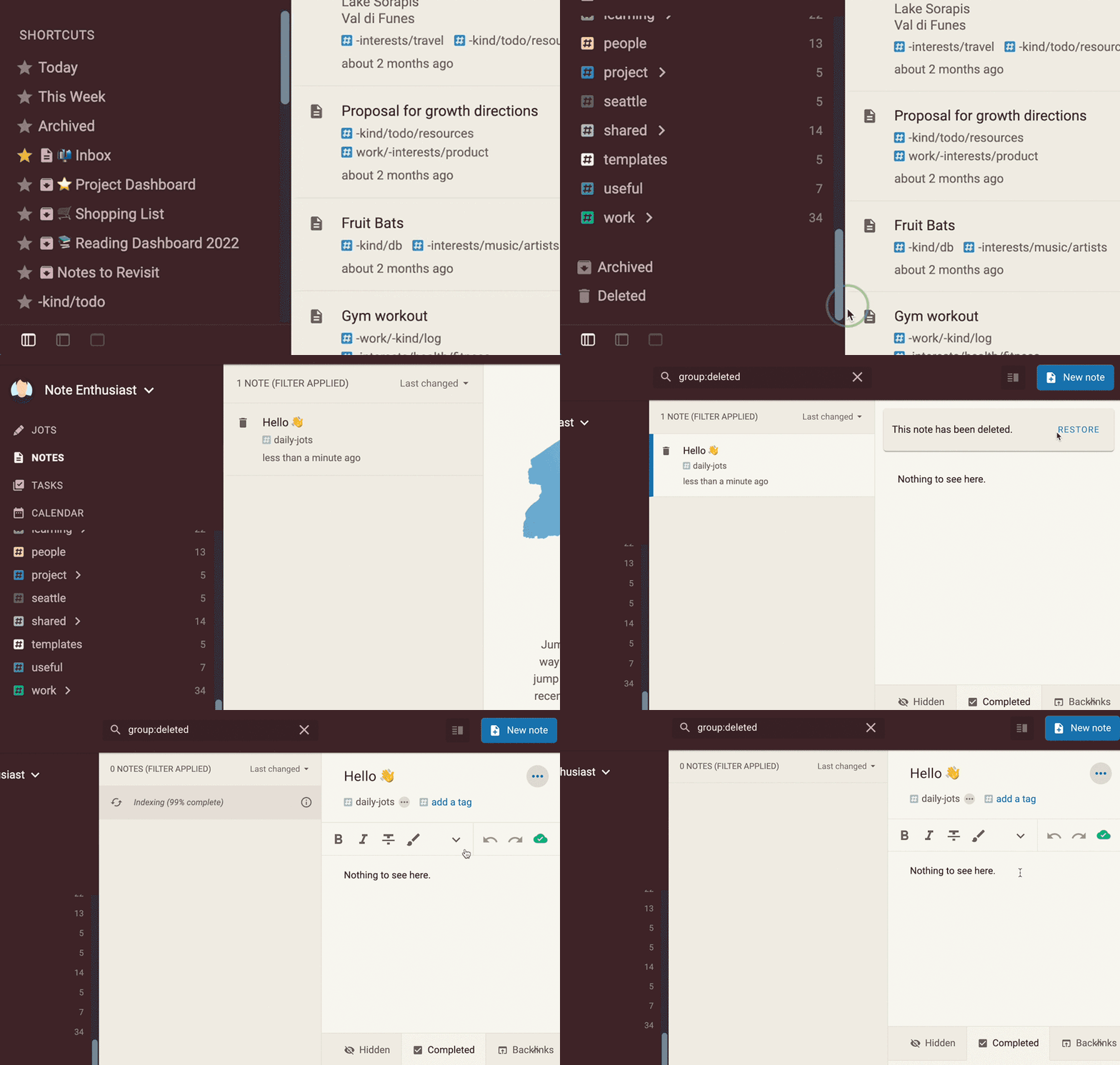
Once inside a note, click on Restore to prevent the note from being deleted permanently and restore it to your notebook.
linkMail-to-note usage and options
Read more about forwarding emails to Amplenote here: Mail-to-note usage and options.
linkCreate a Note Shortcut (aka a "pinned note")
Learn about Note Shortcuts: Create a Note Shortcut (aka a "pinned note").