
linkWelcome Note:
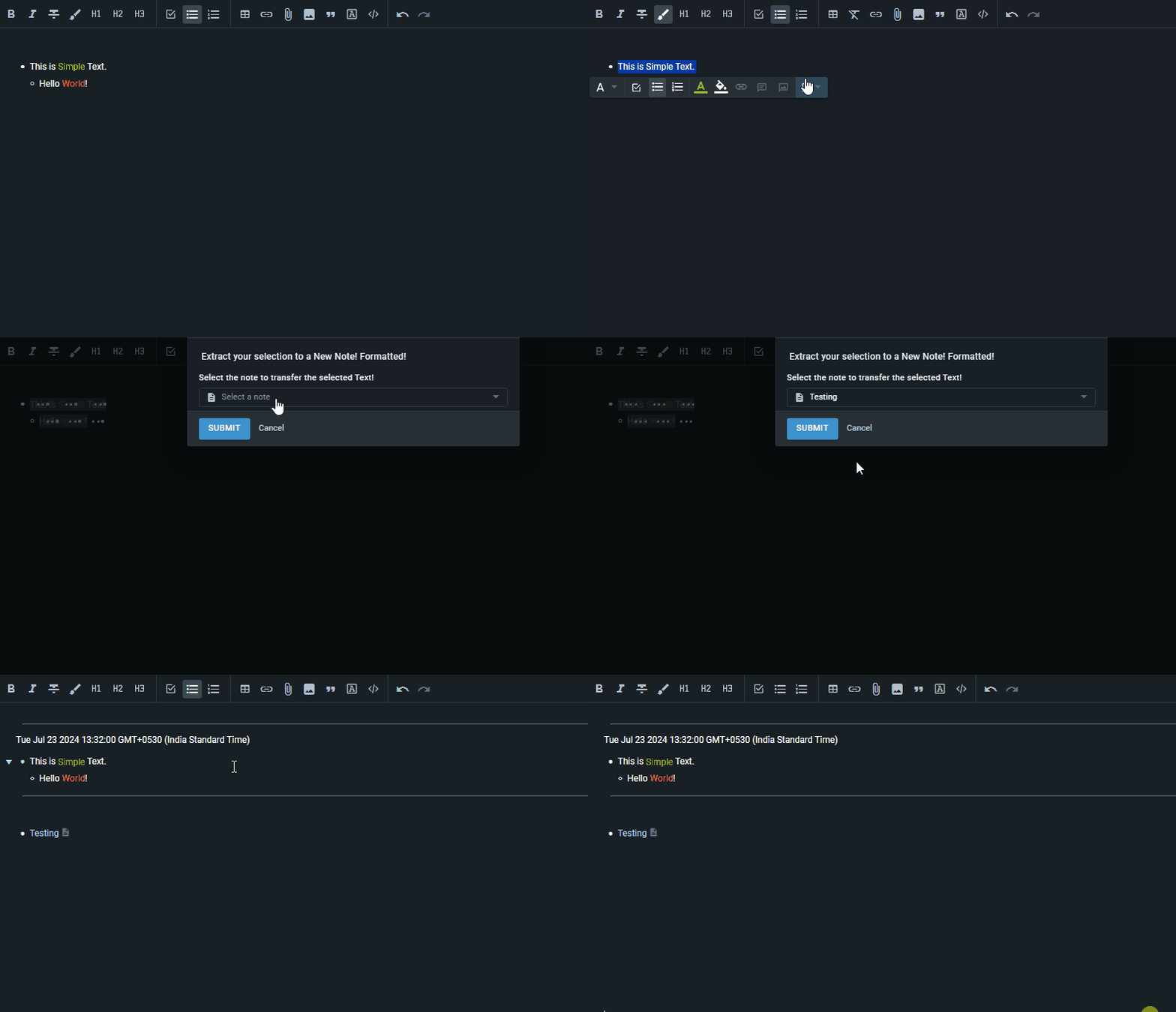
This Plugin function is designed to facilitate the process of transferring selected content from one note to another within Amplenote. It keeps and maintains the format with respect to the selected content, inserts it into the destination note, and replaces the original selection with a link to the note where the data is transferred to!.
This is just an extended version of the inbuild Extract to a note function which comes with Amplenote.
Limitations: This does not have the feature of handling new note creation process. This can only move the content to a already existing note in Amplenote.
linkDemo:
linkGeneral - Calling the Plugin - Extract to a note 2.0
linkDocumentation:
link1. Retrieving Selected Content
Purpose:
This part of the function retrieves the currently selected content from the note . This content is what the user has highlighted or selected in the app.
Behavior:
The selected content is stored in the variable textWithFormatting.
This content is logged to the console for debugging or informational purposes.
Reflection in Final View:
The content that is selected by the user will be included in the new note, formatted with additional information.
link2. Prompting User for Note Selection
Purpose:
Prompts the user to choose a destination note where the selected content will be transferred.
Behavior:
The prompt displays a dialog to the user with an input field where they can type the name of the note they want to use.
The result, which includes the note's name and unique identifier (UUID), is captured and stored in the result variable.
Reflection in Final View:
The user selects the destination note, which determines where the selected content will be placed.
link3. Processing User Selection
Purpose:
Processes the user's note selection by storing it in the noteName variable.
Behavior:
Logs the selected note's name and UUID to the console for verification and debugging purposes.
Reflection in Final View:
This information is crucial for inserting content into the correct note and for generating a link to the destination note.
link4. Formatting the Text
Purpose:
Prepares the selected content for insertion into the new note by formatting it with additional elements.
Behavior:
Adds a horizontal line (---), the current date, and the selected content itself to create a formatted block of text.
Logs the formatted text to the console for review.
Reflection in Final View:
The formatted content will appear in the destination note with a clear separation from other content, including a timestamp.
link5. Creating a Link to the Destination Note
Purpose:
Constructs a placeholder link to the newly created note where the formatted content will be inserted.
Behavior:
The link is formatted using Markdown syntax to display the note's name as a clickable link.
Logs the link to the console for debugging purposes.
Reflection in Final View:
The link to the new note will replace the original selection, providing a quick reference to the new content.
link6. Inserting the Formatted Text
Purpose:
Inserts the formatted text into the selected destination note.
Behavior:
Uses the note's UUID to identify where the content should be inserted.
The textFinal variable contains the formatted text to be added.
Reflection in Final View:
The new note will contain the formatted content, including the horizontal lines and timestamp.
link7. Replacing Original Selection with Link
Purpose:
Replaces the original selection with a link to the destination note.
Behavior:
The selected content in the original location is replaced by the placeholder link created earlier.
Reflection in Final View:
The original selection will now show a link to the new note, facilitating easy access to the newly created content.
link8. Completion
Purpose:
Signals the completion of the function's execution.
Behavior:
Returns null to indicate that the function has finished running.
Reflection in Final View:
The function execution is complete, and all intended actions have been performed.
linkSummary
This Plugin function is a comprehensive tool for transferring selected content from one note to another. It handles formatting, user input, and content insertion, and it ensures that the original selection is replaced with a link to the new note. This detailed explanation should serve as a reference for understanding and utilizing the function effectively.
linkAdditional Information:
linkChange Log:
July 22nd, 2024: Found the need to have some time tag or a section added to the destination location, where the data is getting moved into using the feature Extract to a note. It's very handy and useful tool. But I was handling this by adding a horizontal line and a date tag manually after moving to the new note! Found this could be automated using a Plugin. Hence build the basics of it.
Found out that my code leaves out all of the formatting and other things already existing the source note.
July 23rd, 2024: After reaching out to Support and Lucian, was able to get the workaround to get the requirement achieved. After a couple of tries and changes, was able to get the complete code working as expected.
July 28th, 2024: Adding readability by giving source replace-text constructions and destination insert-text constructions.
July 29th, 2024: Minor Formatting Tweaks, which support both single line extraction and also bullets extractions (without and with markdown formatting!)
November 24th, 2024: Added the Source location in the Destination reference. Now both-ways it is referenced and it is complete.
linkImplemented & Upcoming:
replace current text
inserts content to note
date
formatting
prompting
quickly add or replace
minor tweaks on source replacetext constructions and destination inserttext constructions.
Minor Formatting Tweaks
Future Ideas in the Bucket:
May be even in the destination location, add the link of from where the data came from, source location.
Needs fix: If the selection starts with a link, then it has some trouble replacing the content.
Also add app.context.selectionContent to TextMagiQ - There are multiple good possibilities that can be manifested there too.
Code Explanation! For Curious Readers and Explores! Thank you if you have made till here. You are Awesome, if you are reading this! 😀. Have a Great Day Ahead!
Time Invested For this Plugin: 4h 24m + 2h 30m + 20m = Totaling up to 6h 54m. [Not including the ideas popping up randomly when doing daily rituals, only Screen Time.]