linkChat UI
The Chat UI is your primary interface for interacting with Ample Copilot's AI using conversational language.
linkOpening the Chat UI
You can open the Chat UI in several ways:
General Chat (No Specific Context):
Press Ctrl+O (or Cmd+O on Mac) to open the Command Palette, search for "Chat with Copilot", and select it.

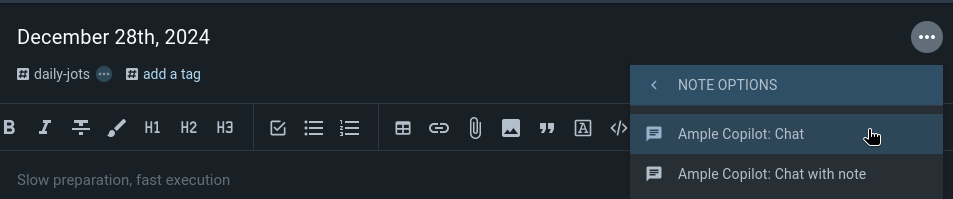
Open a note, click the "..." (Note Options) menu, and select "Ample Copilot: Chat".
Chat with Context:
Note Context: Open a note, click the "..." menu, and select "Ample Copilot: Chat with note". The current note will be added as context.

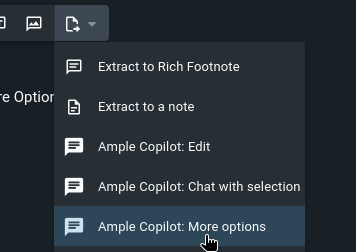
Selection/Task/Image Context: Select text, a task, or an image within a note. A context menu will appear with options to chat with that specific item as context.
linkUsing Tools (@notes, @tasks, @web, @help)
Tools give the AI specific capabilities. To enable a tool group for your current chat message (or conversation thread), type @ followed by the tool category name.
@notes: Allows the AI to search, read, create, and modify your notes.
Requires CopilotDB to be synced for search functionality (See Natural Language Search Page).
Example: @notes Find notes about project planning from last month.
Example: @notes Create a new note titled 'Meeting Summary' with the content: ...
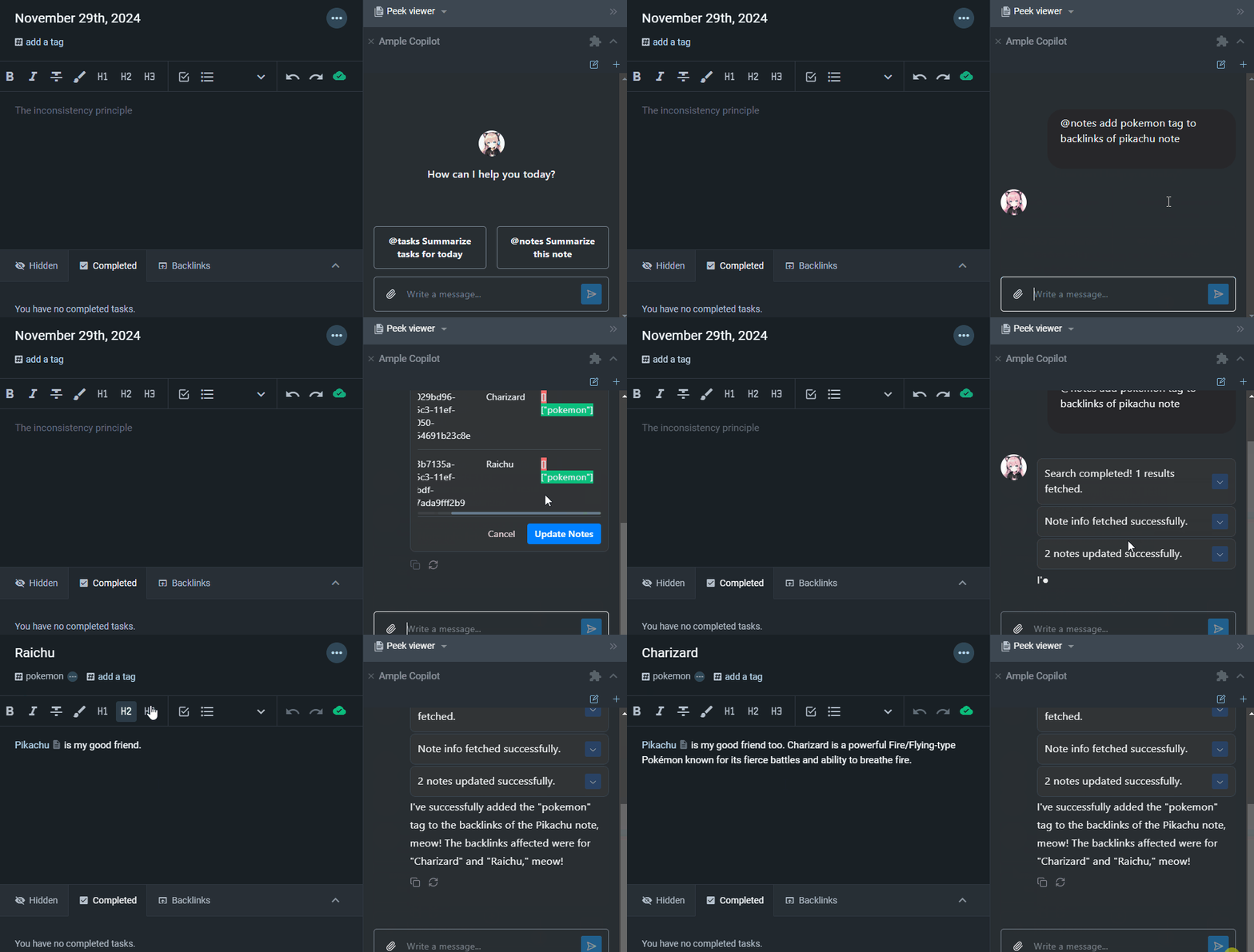
Example (GIF): Using @notes to add tags to backlinks.
@tasks: Enables the AI to find, add, modify, and complete tasks in your notes.
Example: @tasks Mark all my tasks due today as completed.
Example: @tasks Reschedule all tasks marked important to tomorrow.
@web: Allows the AI to search the web and read webpage content.
Example: @web Summarize the main points from https://example.com/article.
Example: @web What is the latest news about AI?
@help: Provides access to the Amplenote Help Center documentation. Ask questions about how Amplenote or the plugin works.
Example: @help Explain how task scores work.
Demo Video: https://www.youtube.com/watch?v=Zkpu_f9rcKk
You can also enable tool groups by clicking the + button beside the input box (since v0.9.0).
linkUsing Custom Prompts
You can save frequently used prompts in your Prompt Library for easy reuse in Chat UI.
Click the "Prompt Library" icon (magic wand button).
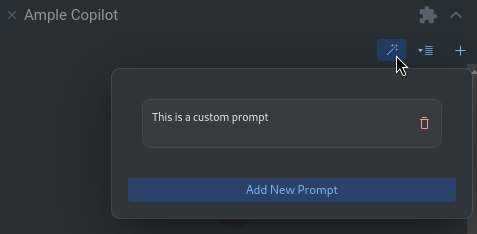
Add, edit, or delete prompts.
Click a saved prompt to insert it into the chat input field.
linkQuick Actions (Slash Commands)
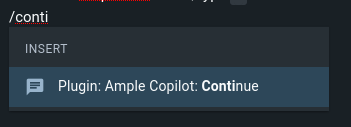
Inside the Amplenote editor, type / or select some text and chose 'More Options' to access quick AI actions.